
Introduction
Full funnel tracking allows advertisers to measure the complete customer journey from the first ad click to the final sale. Instead of tracking only form submissions, businesses can track raw leads, qualified leads, and actual revenue inside Google Ads. Using Google Tag Manager, server-side tracking with Stape, and HubSpot CRM integration, both online and offline conversions can be sent to Google Ads.
✔ This setup allows you to track:
➜ Raw leads from landing page form submissions
➜ Sales qualified leads from CRM deals
➜ Converted leads (sales)
➜ Deal revenue values from CRM
➜ Complete funnel tracking inside Google Ads
Prerequisites
Before starting, make sure you have:
✔ Stape account
✔ Google Tag Manager Web container
✔ GTM Server container
✔ Website or landing page
✔ HubSpot CRM
✔ Google Ads account
 Need Help?
 Hire Me for Setup: WhatsApp Me
Book a Consultation: Schedule a Call
Step-by-Step Implementation
PART 1 – Verify Tracking Environment
Step 1: Prepare Required Tools
Prepare the following tools for the tracking setup:
Stape account
GTM Web container
Server GTM container
Website or landing page
HubSpot CRM
Google Ads account
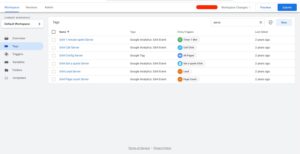
Step 2: Preview Web GTM and Server GTM
Open Google Tag Manager.
Click Preview Mode.
Connect the landing page URL.
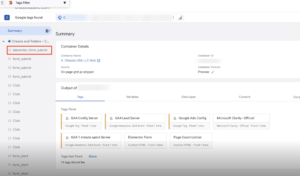
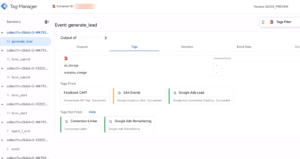
Open preview mode for both Web GTM and Server GTM containers.
PART 2 – Capture Landing Page Lead
Step 3: Capture Landing Page Form Submission
Open the landing page used in Google Ads campaigns.
Fill the form and submit it.
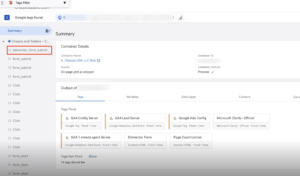
Step 4: Capture Form Submission Using Event Listener
An event listener code captures the Elementor form submission and pushes the event to the data layer.
Captured user data includes:
Name
Phone number
Email address
PART 3 – Send Event Data to Server GTM
Step 5: Send Data to Server-Side GTM
The data layer event is sent to Server GTM using the GA4 client.
Server GTM receives user data such as email, phone number and other information.
Step 6: Send Raw Lead Conversion
Server-Side GTM sends the form submission event to Google Ads as Raw Lead conversion.
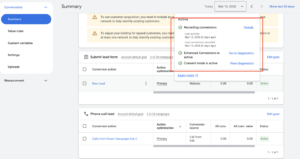
PART 4 – Verify Google Ads Conversion
Step 7: Verify Conversion ID and Label
Open Google Ads conversion goals.
Check the conversion ID and conversion label to confirm they match the tracking setup.
PART 5 – Store Lead Data in CRM
Step 8: Store Lead Data in HubSpot
The website is connected with HubSpot CRM using the HubSpot WordPress plugin.
Form submission data is stored inside HubSpot Contacts.
PART 6 – Send Offline Conversion Events
Step 9: Send Sales Qualified Lead Conversion
Sales team reviews leads inside HubSpot.
When a deal is created, the lead becomes Sales Qualified Lead and this event is sent to Google Ads.
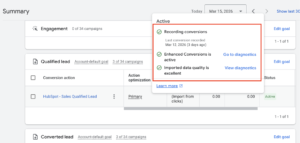
Step 10: Send Deal Value
When the deal is created, the deal value is sent to Google Ads as the conversion value.
Step 11: Track Converted Lead
When the deal is marked as Sale, HubSpot sends a Converted Lead conversion to Google Ads.
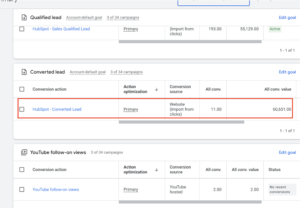
Step 12: Send Revenue Value
When the deal is marked as Sale, the actual revenue value is sent to Google Ads.
PART 7 – Configure CRM Conversion Events
Step 13: Configure HubSpot Ads Event Conditions
Inside HubSpot Ads Integration configure conversion events:
Sales Qualified Lead
Converted Lead
Events trigger when the lifecycle stage changes.
Step 14: Enable Enhanced Conversions
Google Ads receives user provided data including:
Email
Phone number
This enables Enhanced Conversions for both online and offline conversions.
PART 8 – Verify Analytics Tracking
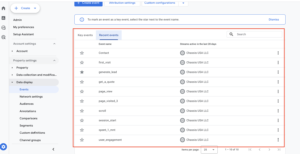
Step 15: Verify GA4 Tracking
GA4 receives online conversion events only from server-side tracking.
Tracked events include:
Generate Lead (form submission)
Phone Click Events
Other engagement events
Step 16: Verify Full Funnel Tracking
Check Google Ads reporting to confirm the funnel stages:
Clicks
Raw Leads
Qualified Leads
Converted Leads
Testing Full Funnel Tracking
Submit a test lead from the landing page.
Confirm the lead appears in HubSpot Contacts.
Create a deal to trigger Sales Qualified Lead conversion.
Mark the deal as Sale to trigger Converted Lead conversion.
Check Google Ads to confirm each stage appears in the funnel.
Final Publish Step
Confirm that:
Server-side tracking is active
HubSpot CRM integration is connected
Google Ads conversions are receiving data
✔ Your Full Funnel Tracking for Google Ads is now active.
Professional Conclusion
✔ After implementing this setup you now have:
➜ Raw lead tracking from landing pages
➜ Sales qualified lead tracking from HubSpot CRM
➜ Converted lead tracking (sales)
➜ Revenue value tracking in Google Ads
➜ Complete funnel visibility from click to sale
This setup allows advertisers to measure the full customer journey and optimize campaigns based on real revenue.
Need expert help setting up Full Funnel Tracking for Google Ads?
Hire Me for Setup: WhatsApp Me
Book a Consultation: Schedule a Call
