
Quick Answer
HubSpot form tracking with GTM requires a custom JavaScript event listener in Google Tag Manager, because HubSpot forms are embedded inside an iframe and GTM’s standard Form Submission trigger cannot detect iframe events. Specifically, you add a Custom HTML tag containing a window.addEventListener script that listens for HubSpot’s hsFormCallback postMessage and pushes a hubspot_form_submit event to the Data Layer when a form is successfully submitted, then create a Custom Event trigger and a GA4 event tag to capture that Data Layer push and send the form_submission event to Google Analytics 4. Every HubSpot form submission on your landing page becomes a trackable conversion event in GA4, giving you accurate lead data for campaign optimization.
Key Takeaways
✅ HubSpot forms load inside an iframe, so GTM’s built-in Form Submission trigger cannot detect submissions. Therefore, HubSpot form tracking with GTM requires a custom JavaScript event listener that captures successful HubSpot form submissions and pushes a custom event into the Data Layer for accurate tracking.
✅ The HubSpot custom listener must fire using the Initialization – All Pages trigger in Google Tag Manager. Specifically, the listener needs to load before the embedded HubSpot form renders. Otherwise, GTM may fail to detect the submission event entirely, which can result in missing conversions and inaccurate reporting.
✅ HubSpot form tracking with GTM depends on three core implementation components working together. These include a Custom HTML listener tag, a Custom Event trigger, and a GA4 event tag. The listener detects the form submission, the trigger responds to the Data Layer event, and the GA4 tag sends the conversion event to Google Analytics 4 with optional parameters such as form ID.
✅ Always validate the tracking setup before publishing to production. Open GTM Preview Mode, connect your landing page, submit the HubSpot form, and confirm the hubspot_form_submit event appears in the GTM event timeline. Then verify that the form_submission event appears inside GA4 DebugView. Consequently, this testing process prevents broken production tracking and protects attribution accuracy.
Introduction
HubSpot form tracking with GTM is more complex than most marketers expect, and for a specific technical reason. HubSpot is one of the most widely used CRM and marketing platforms for lead generation businesses. Tracking HubSpot form submissions accurately in Google Analytics 4 requires a workaround that most GTM setups do not include by default.
HubSpot embeds its forms inside an iframe element. GTM’s built-in Form Submission trigger, which works perfectly for regular HTML forms, cannot see inside that iframe. Every attempt to track HubSpot forms using the standard GTM form listener fails silently, leaving your lead conversion data completely invisible in GA4.
As a Stape.io Certified Partner and Marketing Attribution Specialist, I have implemented HubSpot form tracking for multiple clients across lead generation businesses. This guide covers the exact setup: custom JavaScript listener, Data Layer variable creation, GA4 event tag configuration, and GTM Preview Mode validation, so every HubSpot form submission on your landing pages fires accurately in GA4.
Watch Now
Figure 1: How to Track HubSpot Landing Page and Form Submission with GTM and GA4
What Is HubSpot Form Tracking with GTM?
HubSpot form tracking with GTM is the process of capturing every successful HubSpot form submission on your website or landing page and sending that event, along with the form ID and page details, into Google Analytics 4 as a trackable conversion event, using Google Tag Manager to deploy the tracking without modifying your site’s core code.
Because HubSpot forms are loaded inside an iframe, they communicate with the parent page using the browser’s postMessage API rather than standard DOM events. Specifically, HubSpot fires a hsFormCallback message with eventName: onFormSubmitted when a form is successfully submitted. Your custom JavaScript listener intercepts that message from the parent page and pushes a hubspot_form_submit event to window.dataLayer, which GTM then reads and uses to fire your GA4 event tag.
For technical reference on GA4 event tracking implementation, see the GA4 Events documentation from Google’s developer documentation.
Why HubSpot Form Tracking in GA4 Matters
For lead generation businesses, HubSpot form submissions are the most important conversion event on the entire website. However, without accurate HubSpot form tracking in GA4, you cannot connect advertising spend to actual leads, which means every campaign optimization decision is made without knowing which traffic sources, campaigns, or landing pages generate qualified leads.
Without proper HubSpot form tracking with GTM, these problems occur:
- GA4 shows no conversion events despite real form submissions happening every day
- Google Ads Smart Bidding has no lead signal, consequently optimizing toward clicks and sessions instead of form submissions
- You cannot identify which landing pages, campaigns, or keywords generate the most leads
- Meta Ads and Google Ads receive no conversion data, therefore lookalike audiences are built on incomplete signals
- HubSpot CRM lead attribution cannot be verified against GA4 campaign data
With accurate HubSpot form tracking in GA4, you gain:
- Every form submission fires a trackable conversion event in GA4 with form ID and page URL
- Google Ads conversion tracking receives lead signals, as a result Smart Bidding can optimize toward form submissions
- GA4 reports show which campaigns, landing pages, and traffic sources drive the most form completions
- Furthermore, marking form_submission as a key event in GA4 enables direct import into Google Ads for lead-based bidding
How the System Works, Complete Data Flow
Before building the setup, it is important to understand exactly why HubSpot forms require a custom approach. In other words, this is a five-step chain from form submission to GA4 event.
Figure 2: Complete Data Flow, HubSpot Form Submission Through GTM Custom Listener to GA4
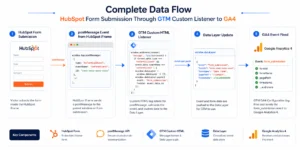
- Step 1: First, a visitor fills out and submits a HubSpot form on your landing page. The form is loaded inside an iframe, which is a completely separate browsing context from your main page.
- Step 2: Next, HubSpot fires a postMessage from inside the iframe to the parent window. Specifically, this message contains data.type === “hsFormCallback” and event.data.eventName === “onFormSubmitted”, along with the form’s unique GUID.
- Step 3: The custom JavaScript listener in your GTM Custom HTML tag intercepts this postMessage on the parent window. It then pushes a structured event to dataLayer containing the event name and form GUID.
- Step 4: GTM detects the hubspot_form_submit Data Layer push and fires the Custom Event trigger. Subsequently, the GA4 event tag fires and sends a form_submission event to Google Analytics 4 with the form ID and page URL.
- Step 5: Finally, GA4 records the form_submission event. It appears in DebugView in real time and flows into GA4 Engagement reports, giving you full visibility into which landing pages and campaigns drive HubSpot form completions.
Prerequisites
Before starting, make sure the following are in place:
- Google Tag Manager installed on your website or HubSpot landing page
- GA4 property created with a Measurement ID ready (G-XXXXXXXXXX)
- GA4 Configuration tag already published in your GTM container
- HubSpot form embedded on a landing page and accessible for testing
- GTM Preview Mode access for testing
- GA4 DebugView access for real-time event verification
- Access to submit a real test form during validation
- Stape.io account if planning to add server-side tracking for ad-blocker resilient form tracking
IMPORTANT: This guide covers HubSpot forms embedded on external websites via the HubSpot embed code. However, if your form is on a native HubSpot landing page (pages.hubspot.com), the same approach applies, but you must first install GTM on your HubSpot portal via Settings and Tracking Code.
Step-by-Step Implementation
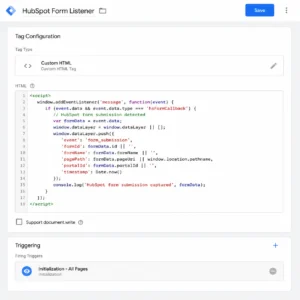
Step 1: Create the HubSpot Form Listener Tag in GTM
To begin, go to Google Tag Manager and navigate to Tags, then New, then Tag Configuration, then Custom HTML.
Paste the following JavaScript listener script into the Custom HTML field:
This script listens for the postMessage that HubSpot sends on every successful form submission. Specifically, it checks for hsFormCallback as the message type and onFormSubmitted as the event name, which are HubSpot’s unique identifiers for a completed submission. When both conditions are true, it pushes hubspot_form_submit to the Data Layer along with the form’s GUID.
Set the trigger to Initialization All Pages. Name the tag Custom HTML, HubSpot Form Listener and save.
CRITICAL: The trigger must be set to Initialization All Pages, not a page view trigger limited to specific URLs. Specifically, the listener needs to be active before the HubSpot form finishes loading. Therefore, if the listener fires after the form loads, it may miss the onFormSubmitted event for users who submit quickly.
Figure 3: GTM Custom HTML Tag, HubSpot Form Listener Script with Initialization All Pages Trigger
Step 2: Create the Data Layer Variable for Form GUID
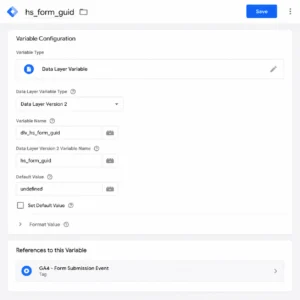
In GTM, go to Variables, then New, then Variable Configuration, then Data Layer Variable.
Set the Data Layer Variable Name to hs_form_guid. Set the Data Layer Version to Version 2. Name the variable dlv_hs_form_guid and save.
This variable reads the form GUID that the listener pushes to the Data Layer with every HubSpot form submission. As a result, you can pass the form ID as an event parameter in your GA4 tag, allowing you to identify exactly which HubSpot form was submitted in your GA4 reports.
Figure 4: GTM Data Layer Variable, hs_form_guid for HubSpot Form GUID Tracking
Step 3: Create the Custom Event Trigger
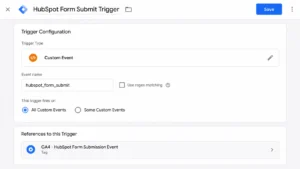
In GTM, go to Triggers, then New, then Trigger Configuration, then Custom Event.
Set the Event Name to hubspot_form_submit. This must match exactly the event name in your Custom HTML listener script, including underscores and capitalization. Name the trigger CE, HubSpot Form Submit and save.
CRITICAL: The event name in the Custom Event trigger must exactly match the event name in the Data Layer push. Specifically, hubspot_form_submit (underscore) is different from hubspot-form-submit (hyphen). Therefore, always copy the event name directly from the listener script rather than typing it manually.
Figure 5: GTM Custom Event Trigger, hubspot_form_submit Event Name for HubSpot Form Tracking
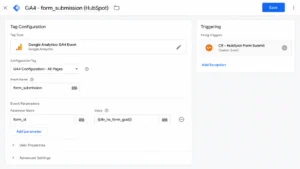
Step 4: Create the GA4 Form Submission Event Tag
In GTM, go to Tags, then New, then Tag Configuration, then Google Analytics: GA4 Event.
Set the Configuration Tag to your existing GA4 Config tag. Set the Event Name to form_submission, lowercase, no spaces.
Under Event Parameters, add:
| Parameter Name | Value |
| form_id | {{dlv_hs_form_guid}} |
| page_location | {{Page URL}} |
| page_title | {{Page Title}} |
Set the trigger to CE, HubSpot Form Submit. Name the tag GA4, HubSpot Form Submission and save.
Figure 6: GTM GA4 Event Tag, form_submission with form_id Parameter and CE HubSpot Form Submit Trigger
Step 5: Test in GTM Preview Mode
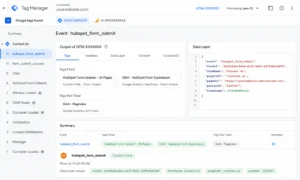
Go to GTM Workspace and Preview. Enter the URL of your landing page containing the HubSpot form and connect. Fill in the form and submit it. Then in GTM Preview, confirm:
- hubspot_form_submit event appears in the event list on the left panel
- Custom HTML, HubSpot Form Listener tag shows as Fired
- GA4, HubSpot Form Submission tag shows as Fired
- The hs_form_guid variable is populated with the correct HubSpot form GUID
CHECK: If the hubspot_form_submit event does not appear after submitting the form, the listener is not firing correctly. Specifically, verify the Custom HTML tag trigger is set to Initialization All Pages. Additionally, check your browser console for JavaScript errors that may be blocking the listener.
Figure 7: GTM Preview Mode, HubSpot Form Submit Event Fired with Form GUID in Data Layer
Step 6: Verify in GA4 DebugView and Publish
In GA4, go to Admin and then DebugView. Submit another test form. Confirm the form_submission event appears in real time with the correct form_id parameter matching your HubSpot form GUID.
Once verified, go to GTM, then Submit, name the version HubSpot Form Tracking Setup, and Publish. Finally, in GA4, go to Configure and Events, find the form_submission event, and toggle Mark as key event to ON. As a result, this event becomes available for Google Ads conversion import and appears in your GA4 key events report.
Default GTM Form Trigger vs Custom HubSpot Listener, Comparison
| Feature | Default GTM Form Trigger | Custom HubSpot Listener (GTM) |
| Works with HubSpot iframe | ❌ Cannot see inside iframe | ✅ Intercepts postMessage from iframe |
| Tracks form submission | ❌ Fails silently | ✅ Fires on every successful submission |
| Form GUID available | ❌ No form identifier | ✅ hs_form_guid passed to GA4 |
| GA4 event fired | ❌ Never fires | ✅ form_submission event in GA4 |
| Google Ads conversion signal | ❌ No lead data | ✅ Import form_submission as conversion |
| Multiple forms distinguishable | ❌ Cannot separate forms | ✅ Each form tracked by unique GUID |
| Page URL tracking | ❌ No submission context | ✅ page_location parameter included |
| GTM Preview testable | ❌ Nothing to validate | ✅ Full validation in GTM Preview Mode |
| Meta Pixel compatible | ❌ No trigger available | ✅ Same CE trigger fires Meta Lead tag |
| Reliability across browsers | ❌ Completely unreliable | ✅ Consistent in all browsers |
Real Use Case, HubSpot Landing Page for Lead Generation
To illustrate the impact of correct HubSpot form tracking, consider this client example. A B2B software company had HubSpot forms on 12 landing pages running Google Ads campaigns for 3 months. Despite generating 150 to 200 form submissions per month, GA4 showed zero form submission events, because the default GTM form trigger was failing silently against HubSpot’s iframe structure.
Before custom GTM listener implementation:
- GA4 form submission events: 0, despite 180+ monthly form completions in HubSpot CRM
- Google Ads Smart Bidding optimizing toward page views and session duration, not actual leads
- No way to identify which landing pages or keywords generated the most qualified leads
- HubSpot CRM showing leads but GA4 attribution gap meant no campaign performance data
- Cost per lead: unmeasurable, consequently budget allocation was entirely guesswork
After implementing HubSpot form tracking with custom GTM listener, 30 days:
- GA4 recording 176 form submissions in the first 30 days, matching HubSpot CRM lead count exactly
- Google Ads Smart Bidding switched to Target CPA, optimizing toward actual form submissions
- GA4 revealed Landing Page B converting at 2x the rate of Landing Page A despite similar traffic volume
- Budget reallocated from underperforming campaigns, cost per lead dropped 41% within 30 days
- Form GUID tracking revealed which specific form variants had higher completion rates, informing A/B test decisions
Tools Used
| Tool | Purpose |
| Google Tag Manager | Custom HTML listener tag, triggers, variables, and GA4 event tag management |
| Google Analytics 4 | Receives form_submission events and displays in DebugView and Engagement reports |
| HubSpot | CRM and form platform, forms embedded via iframe on landing pages |
| GTM Preview Mode | Validates listener and GA4 tags fire correctly before publishing |
| GA4 DebugView | Real-time form_submission event verification after publishing |
| HubSpot Embed Code | iframe-based form embed generating hsFormCallback postMessage events |
Common Mistakes
Mistake 1, Using GTM’s Built-In Form Submission Trigger for HubSpot
The most common mistake in HubSpot form tracking is using GTM’s built-in Form Submission trigger type. Because HubSpot forms are inside an iframe, GTM’s native form listener cannot access the iframe’s DOM. Consequently, the trigger never fires regardless of how many forms are submitted. As a result, GA4 shows zero form conversion events while HubSpot CRM records real leads. Therefore, always use the custom window.addEventListener listener script in a Custom HTML tag instead.
Mistake 2, Mismatched Event Name in Custom Event Trigger
The event name in the Custom Event trigger must exactly match the event name in the Custom HTML listener script. Specifically, hubspot_form_submit with an underscore is different from hubspot-form-submit with a hyphen or HubspotFormSubmit in camelCase. If the names do not match, GTM never fires the GA4 tag, therefore your form submissions push to the Data Layer correctly but no GA4 event is ever sent. Always copy the event name directly from the listener script rather than typing it manually in the trigger configuration.
Mistake 3, Listener Tag Firing on Specific Pages Instead of All Pages
Setting the Custom HTML listener tag to fire only on the specific landing page URL means the listener may not be active during page initialization, and HubSpot’s iframe may load and accept a form submission before the listener registers. As a result, fast or pre-loaded form submissions may not be captured. Therefore, always set the Custom HTML tag trigger to Initialization All Pages to ensure the listener is registered before any HubSpot form can load on the page.
Mistake 4, Not Marking form_submission as a Key Event in GA4
After publishing the GTM setup, many implementations stop at tracking the event in GA4 without completing the final step. Specifically, until form_submission is marked as a key event in GA4, it does not appear in Google Ads conversion import, is not visible in GA4 key events reports, and cannot be used for Smart Bidding optimization. Therefore, after validating the event in DebugView, always navigate to GA4, then Configure, then Events, and toggle the form_submission event to Mark as key event.
Advanced Optimization Strategies
Tips 1: Track Multiple HubSpot Forms Separately Using Form GUID Filtering
If your website has multiple HubSpot forms, for example a contact form, a demo request form, and a newsletter signup, you can track each one as a separate GA4 conversion event by filtering on the hs_form_guid parameter. Specifically, create individual Custom Event triggers with a filter where dlv_hs_form_guid equals the specific form’s GUID, found in HubSpot under Marketing, then Forms, then the form name, then Share, then Embed Code. As a result, GA4 reports show separate conversion events per form type, consequently enabling precise campaign optimization based on which specific form each visitor completed.
Tips 2: Import HubSpot Form Submissions into Google Ads as Lead Conversions
Once the form_submission event is marked as a key event in GA4, link your GA4 property to Google Ads and import the event as a conversion action. Specifically, go to Google Ads, then Tools, then Conversions, then Import, then Google Analytics 4 Properties and select the form_submission event. Set a conversion value reflecting your average lead-to-revenue rate. As a result, Smart Bidding in Google Ads receives real lead signals. Therefore, Target CPA bidding can optimize toward actual HubSpot form submissions rather than page views or session duration.
Tips 3: Add Enhanced Conversions by Capturing HubSpot Form Email Data
HubSpot’s onFormSubmitted callback also provides access to form field data including the submitter’s email address via event.data.data.submissionValues. Therefore, extend your listener script to capture the email and pass it through GTM’s User-Provided Data variable to enable Google Ads Enhanced Conversions, recovering 15 to 25% of lead conversions from iOS users and ad blocker users. Specifically, hash the email with SHA-256 before passing it to the Google Ads Conversion tag as user_data.email_address. For reference on Enhanced Conversions setup, see the Enhanced Conversions for Web documentation from Google Ads support.
Tips 4: Send HubSpot Form Submissions to Meta Pixel via GTM
The same CE, HubSpot Form Submit trigger that fires your GA4 tag can also fire a Meta Pixel Lead event tag simultaneously, allowing you to track HubSpot form completions in Meta Ads without additional setup. Specifically, create a Custom HTML tag with fbq(“track”, “Lead”) triggered by CE, HubSpot Form Submit. Additionally, if you have Stape.io server-side tracking configured, route the Meta Lead event through your server container for higher Event Match Quality and improved attribution accuracy for iOS users.
Tips 5: Use Stape.io Server-Side Tracking for Ad-Blocker Resilient Form Tracking
Browser-side GA4 and Meta tags can be blocked by ad blockers, consequently losing HubSpot form submission tracking for privacy-conscious B2B audiences who have above-average ad blocker usage rates. Therefore, configure your Stape.io server container to receive the form submission event and forward it to GA4 and Meta CAPI from the server, bypassing all browser-level blocking. Because the Data Layer push from the HubSpot listener already contains the form GUID and can be extended to include hashed email, the server container receives a complete, high-quality lead conversion event for every HubSpot form submission.
Frequently Asked Questions
Why doesn’t GTM’s built-in form trigger work for HubSpot form tracking?
GTM’s built-in Form Submission trigger works by listening for standard HTML form submit events on the page’s DOM. However, HubSpot forms are embedded inside an iframe, a completely separate browsing context from your main page. Because of browser security restrictions, GTM running on the parent page cannot access DOM events inside the iframe. Therefore, the standard form trigger never detects HubSpot form submissions, and you must use a custom window.addEventListener script that intercepts HubSpot’s postMessage communication between the iframe and the parent window instead.
What is the hsFormCallback and how does it work?
The hsFormCallback is HubSpot’s internal messaging system for communicating form events from the iframe to the parent page. Specifically, when a visitor submits a HubSpot form, the form sends a postMessage to the parent window with event.data.type === “hsFormCallback” and event.data.eventName === “onFormSubmitted”. Because this is the only reliable method to detect a HubSpot form submission from outside the iframe, the custom listener script specifically checks for these two conditions before pushing to the Data Layer.
How do I find my HubSpot form GUID for tracking?
In HubSpot, go to Marketing, then Forms, click on your form, then click the Share or Embed button. In the embed code, you will find the formId, a string like “a1b2c3d4-e5f6-7890-abcd-ef1234567890”. Additionally, after setting up HubSpot form tracking with GTM, the GUID also appears in the form_id parameter of your GA4 form_submission event in GA4 DebugView, which is a quick way to confirm you are capturing the correct form.
Does HubSpot form tracking with GTM work on native HubSpot landing pages?
Yes, the same custom listener approach works for HubSpot forms on native HubSpot landing pages hosted at pages.hubspot.com or your connected domain. However, you first need to install Google Tag Manager on your HubSpot portal. Specifically, go to HubSpot, then Settings, then Website, then Pages, then Tracking Code and paste your GTM head snippet. After GTM is installed, the Custom HTML listener tag works identically on HubSpot-hosted pages as on external websites.
Can I use this HubSpot form tracking setup for Google Ads as well?
Yes, once the Custom Event trigger CE, HubSpot Form Submit is configured, you can add a Google Ads Conversion tag using the same trigger. Specifically, create a new tag, select Google Ads Conversion Tracking, enter your Conversion ID and Label from Google Ads, and assign the CE, HubSpot Form Submit trigger. Additionally, import the GA4 form_submission key event into Google Ads via Tools, then Conversions, then Import, then Google Analytics 4 Properties for a complete lead conversion tracking setup.
What if the HubSpot form listener is not firing in GTM Preview?
First, verify in GTM Preview Mode that the Custom HTML listener tag shows as Fired on the page initialization event. Specifically, open GTM Preview, navigate to your landing page, click on the Initialization event in the left panel, and confirm your Custom HTML tag appears under Tags Fired. Next, submit the form and check whether hubspot_form_submit appears in the event list. If the tag fires but the event does not appear, check the browser console for JavaScript errors. If the tag does not fire at all, verify the trigger is set to Initialization All Pages rather than a URL-specific page view trigger. Additionally, if you have Stape.io server-side tracking, confirm the server container is also receiving events correctly.
Conclusion
In summary, HubSpot form tracking with GTM requires one key insight. HubSpot’s iframe-based forms are invisible to GTM’s standard form trigger, but completely trackable with a custom window.addEventListener listener. Once the listener script is in place, the complete setup is straightforward: the listener captures HubSpot’s postMessage event, pushes it to the Data Layer, and your GA4 event tag fires with the form ID and page details on every successful submission.
As a result, every HubSpot form completion becomes a trackable conversion in GA4. Therefore, you can identify which campaigns, keywords, and landing pages drive real leads, enabling data-driven budget allocation, accurate Smart Bidding optimization, and a direct connection between advertising spend and the leads that enter your HubSpot CRM. Ultimately, this single GTM setup transforms HubSpot from a form tool into a fully measured lead generation system.
Related Posts
- Full Funnel Tracking for Google Ads with CRM, GTM and Stape.io (2026)
- WooCommerce Conversion Tracking with GTM and GA4 (Complete Setup Guide 2026)
- Google Ads Server-Side Tracking with GTM and Stape.io (Complete Setup Guide 2026)
Ready to Fix Your HubSpot Form Tracking in GTM?
If your HubSpot forms are not tracking in GA4 and Google Ads, every lead generation campaign you run is operating without conversion data. As a result, budget is allocated based on clicks and impressions, not actual form submissions and qualified leads.
