
Introduction
Google Ads server-side tracking is essential for maintaining accurate conversion data in today’s privacy-focused ecosystem, where browser limitations and tracking restrictions continue to increase.
As a Stape Certified Partner, I’ve implemented this system for 50+ agencies and businesses worldwide — and this guide shows you how to set it up correctly. Tools like Stape connect your website, server container, and Google Ads to ensure reliable data flow. Traditional client-side tracking is often blocked or restricted — leading to data loss and underreported conversions. Server-side tracking helps you regain control, improve accuracy, and make better optimization decisions.
👉 Google Ads conversion tracking relies on click identifiers like GCLID, which helps measure accurate ad performance.
👉 If you’re unsure how full funnel tracking works, read: Full Funnel Tracking for Google Ads using CRM, GTM & Stape
In this guide, you’ll learn step by step how to implement Google Ads server-side tracking using GTM & Stape.io.
🎥 Watch Now
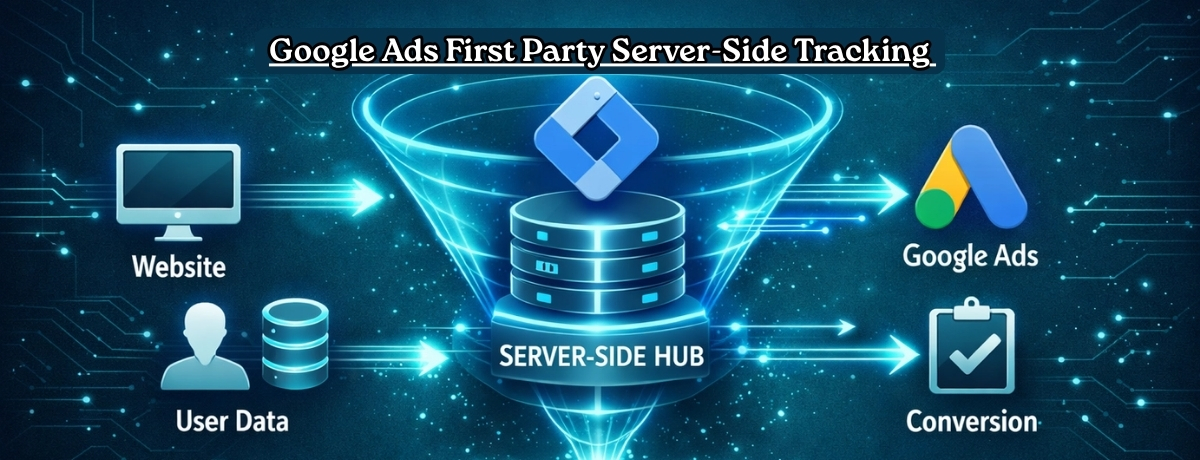
Figure: Google Ads Server-Side Tracking Setup using GTM & Stape
Struggling to set up server-side tracking correctly?
I help businesses implement accurate Google Ads server side tracking systems for better data and ROAS.
👉 WhatsApp: https://wa.me/8801735749155
👉 Book a Call: https://zcal.co/zubayerislam01/consultation
What Is Google Ads First Party Server-Side Tracking?
Google Ads first party server-side tracking is the process of sending conversion and user interaction data through your own server container instead of relying only on browser-based scripts. This setup improves tracking accuracy, protects click identifiers, and gives businesses better control over conversion data.
Why Is It Important?
Modern browsers, ad blockers, and privacy restrictions can break traditional client-side tracking. First-party server-side tracking helps recover lost data and improve campaign performance.
• Improve Google Ads conversion accuracy
• Protect GCLID and click identifiers
• Reduce data loss from browsers
• Strengthen attribution reporting
• Improve smart bidding signals
• Future-proof your tracking system
Quick Answer
Google Ads server side tracking allows businesses to send conversion data through a secure server instead of relying on the user’s browser. It works by routing tracking data via a server container (GTM Server) to improve data accuracy and reduce loss caused by ad blockers or browser restrictions. This results in more reliable conversion tracking, better attribution, and improved campaign performance.
Key Takeaways
- Server-side tracking significantly improves data accuracy by sending conversion data through a secure server instead of relying on the user’s browser.
- First-party tracking helps bypass browser restrictions and ad blockers, ensuring more reliable and consistent conversion tracking for Google Ads campaigns.
- Using stape.io simplifies the setup and hosting of GTM server containers without requiring complex server configurations.
- Google Ads server side tracking enables better attribution, allowing businesses to optimize campaigns based on real and complete conversion data.
Tools Used in This Setup
• Google Tag Manager (Web Container)
• Google Tag Manager (Server Container)
• Google Ads
• Google Analytics 4
• stape.io (referral link)
• Custom Subdomain
• DNS Provider (Cloudflare / GoDaddy)
• Preview / Debug Mode
How the System Works (Simple Flow)
- A visitor clicks your Google Ads campaign.
- Click identifiers like GCLID are stored.
- Website events are captured in Web GTM.
- Events are sent to the Server GTM container.
- Server container processes and forwards conversion data to Google Ads.
- Reporting becomes more accurate and stable.
Why It Matters
Without server-side tracking, businesses often lose valuable conversion data due to browser limitations and privacy changes. First-party server-side tracking improves data ownership, strengthens attribution, and helps scale profitable campaigns with better signals.
Prerequisites
- Google Tag Manager account (Web + Server containers)
- stape.io account
- DNS access (Cloudflare / GoDaddy)
- Google Ads account
- GA4 property
Step-by-Step Implementation
Step 1: Create Stape.io Account & Server Container
A. Prep in GTM
Create a new Server Container in Google Tag Manager.
Choose “Manually provision tagging server.”
Copy the Container Configuration Key.
B. Create Stape Account
Go to stape.io
Choose your location (Global or EU)
Sign up with Email or Google
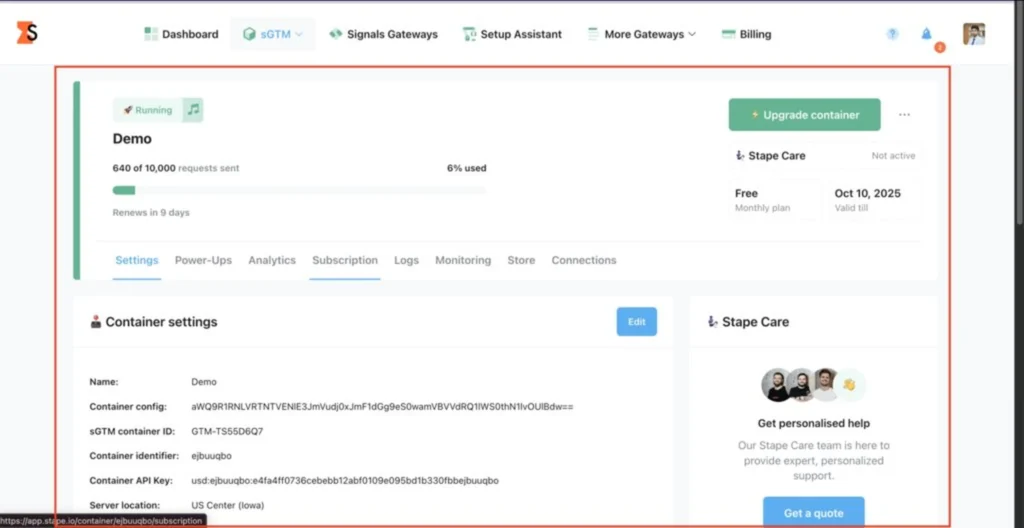
C. Set up Server Container
Log in → Click “Create sGTM Container.”
Paste the GTM Configuration Key
Select Server Location
Choose Free plan
Wait until status shows Running
D. Custom Domain
Add domain (tags.yourdomain.com)
Copy DNS records → Add in your DNS provider
Disable proxy (DNS only)
Paste domain in GTM Server Container
Figure 1: Stape Container Setup
Step 2: Create GTM (Web & Server) Properties
A. Create GTM Account
Go to tagmanager.google.com
Click Create Account
Enter Account Name
B. Create Web Container
Enter Container Name
Select Web
Copy GTM script
Figure 2: Web Container Setup

C. Create Server Container
Go to Admin → Create Container
Select Server
Copy Configuration Key
Figure 3: Server Container Setup

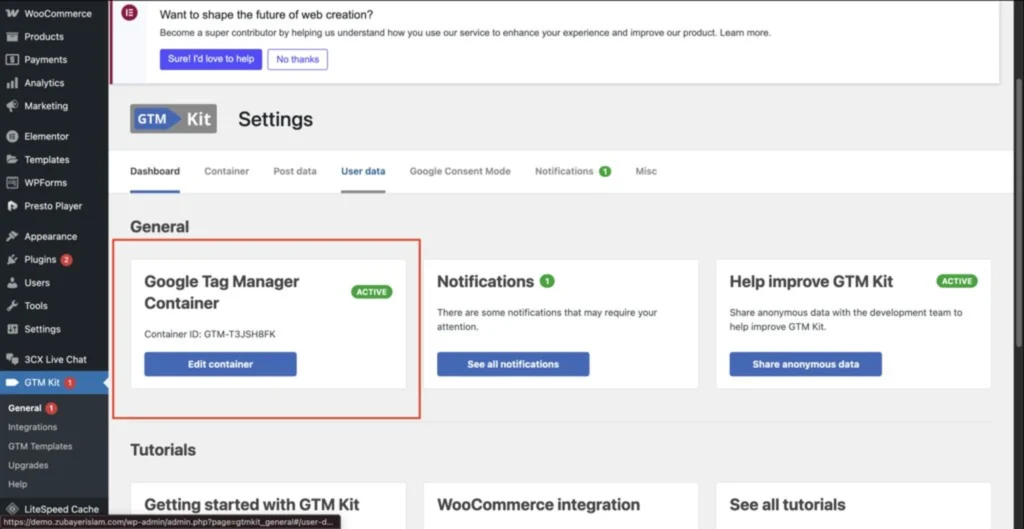
Step 3: Add GTM Script to Website
Add GTM snippets in:
- Head section
- Body section
Figure 4: GTM Script Placement
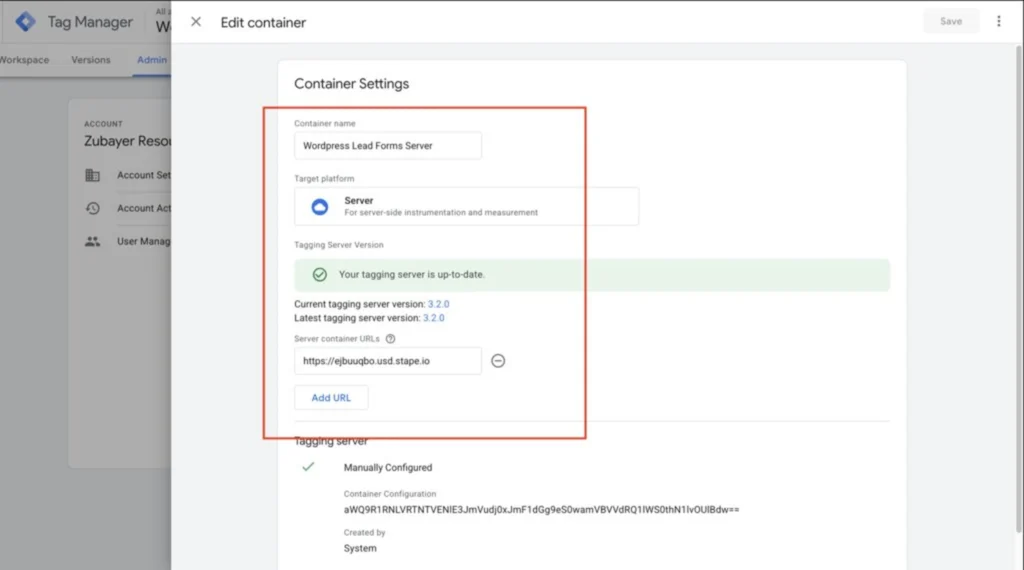
Step 4: Link Stape with SGTM
Log in to stape.io
Create SGTM container
Paste GTM key
Add custom domain
Verify DNS
Add domain in GTM Server URL
Figure 5: Stape & SGTM Link Setup
Step 5: Add Custom Subdomain & Custom GTM Loader
Part 1: Subdomain Setup
Add domain → Configure DNS → Verify
Part 2: GTM Loader Setup
Go to Power-Ups → Custom Loader
Enter domain + GTM ID
Replace GTM script
Test in preview
Step 6: Add Form Listener in Web GTM
Create Custom HTML Tag
Add JS snippet
Create Custom Event Trigger
Test → Publish
Figure 6: Form Listener Code Setup

Step 7: Send Data from Web GTM → Server GTM
Edit GA4 Config Tag → Add parameter:
server_container_url
Create GA4 Event Tag
Trigger: formSubmission
Preview both containers
Figure 7: Web to Server Data Sending

Step 8: Configure SGTM → Send Data to Google Ads
A. Server Variables
Set value, currency, AW-ID
B. Conversion Trigger
event_name = form_submit
C. Server Tags
- Conversion Linker
- Conversion Tracking
👉 Google Tag Manager server-side tagging allows you to send conversion data securely and improve tracking accuracy.
Figure 8: Google Ads Conversion Setup in SGTM

Step 9: Test & Debug
Start GTM Preview
Check network requests
Verify GA4 events
Verify Google Ads conversions
Publish containers
Comparison: Client-Side vs Server-Side Tracking
| Feature | Client-Side Tracking | Server-Side Tracking |
|---|---|---|
| Data Accuracy | ❌ Low (Affected by ad blockers & browser limits) | ✅ High (Reliable & complete data) |
| Tracking Method | Browser-based | Server-based |
| Ad Blocker Impact | ❌ High | ✅ Minimal |
| Data Control | ❌ Limited | ✅ Full control |
| Page Speed Impact | ❌ Can slow down site | ✅ Optimized performance |
| Privacy Compliance | ❌ Weak | ✅ Strong (better data control) |
| Conversion Reliability | ❌ Inconsistent | ✅ Accurate |
| Best Use Case | Basic tracking | Scaling & performance marketing |
Server-side tracking is now becoming the standard due to increasing privacy restrictions, iOS updates, and browser limitations that significantly reduce client-side tracking accuracy.
Tracking Overview
Data Flow:
- User visits website
- GTM (Web) captures event
- Sent to Server Container (Stape)
- Server processes data
- Data sent to Google Ads
Server-side tracking improves data accuracy, attribution, and control.
Real Use Case
Problem:
• Missing conversions
• Low reported ROAS
After Server-Side:
• More accurate data
• Better optimization
Server-side tracking helps scale campaigns with reliable data.
Common Mistakes
- Not using a custom domain
- Missing conversion linker
- Incorrect event mapping
- Not testing properly
Pro Tips
- Use server-side tracking for long-term stability
- Combine with offline tracking
- Enable enhanced conversions
👉 Learn more: Protect Your GCLID in Safari 26: Google Ads Server-Side Tracking with GTM & Stape
Frequently Asked Question
What is server-side tracking in Google Ads?
Server-side tracking sends conversion data through a secure server instead of the browser, improving accuracy and reducing data loss.
Why should businesses use server-side tracking?
It ensures better data accuracy, improves attribution, and helps bypass browser restrictions and ad blockers.
Why use stape.io (referral link)?
It simplifies GTM server container hosting and setup without complex server configuration.
Do I still need Conversion Linker?
Yes, it is required for proper GCLID tracking.
Can enhanced conversions work with server-side tracking?
Yes, using hashed user data improves match rate and conversion accuracy.
How to test server-side tracking?
Use GTM Preview mode and verify events inside Google Ads.
Conclusion
Server-side tracking is essential for accurate data tracking in modern marketing. By implementing Google Ads server side tracking, businesses can improve conversion accuracy, optimize campaigns, and future-proof their tracking system.
Want to implement server-side tracking correctly?
I can help you set up a complete tracking system.
👉 WhatsApp: https://wa.me/8801735749155
👉 Book a Call: https://zcal.co/zubayerislam01/consultation