
Introduction
Accurate Safari GCLID Removal Fix is becoming essential in 2026 as Safari 26 and iOS privacy updates continue to strip tracking parameters like GCLID. As a result, many advertisers face broken attribution, missing conversions, and unreliable reporting inside Google Ads. If your tracking relies only on browser-based methods, your data is already incomplete—and your campaigns are optimizing on inaccurate signals.
As a Stape Certified Partner, I’ve implemented solutions for gclid tracking safari fix, google ads tracking not working safari, and attribution recovery for multiple businesses and agencies. By combining Google Ads server-side tracking, first-party data, and GTM, you can protect your GCLID and ensure accurate conversion tracking even under strict privacy restrictions.
➡️ Google Ads conversion tracking depends heavily on GCLID for proper attribution.
To improve tracking accuracy further, explore Full Funnel Tracking for Lead Generation using GTM & Server-Side Tracking and Google Ads Offline Conversion Tracking with CRM (Complete Guide 2026). In this guide, you’ll learn step by step how to fix GCLID loss in Safari and protect your entire tracking system.
🎥 Watch Now
Figure: Safari GCLID Tracking Breakdown
Struggling with GCLID loss and broken Google Ads tracking?
Get a complete server-side tracking setup to protect your data and improve campaign performance.
WhatsApp: https://wa.me/8801735749155
Book a Call: https://zcal.co/zubayerislam01/consultation
What Is Safari GCLID Removal Fix?
Safari GCLID Removal Fix is a tracking solution that prevents Safari’s Intelligent Tracking Prevention (ITP) from removing GCLID parameters. It works by capturing the click ID as first-party data and sending it to Google Ads during conversion events, ensuring accurate attribution.
Why Is It Important?
Without solving this issue, your tracking system breaks silently. However, implementing a proper Safari GCLID tracking fix ensures:
• Protect GCLID Safari 26 from removal
• Fix gclid not working safari issues
• Restore google ads conversion tracking safari
• Enable google ads first party tracking
• Improve attribution accuracy and campaign performance
➡️ For advanced attribution, explore Google Ads Offline Conversion Tracking with CRM (Complete Guide 2026).
Quick Answer
Safari limits or removes GCLID due to privacy restrictions and Intelligent Tracking Prevention (ITP). As a result, traditional browser-based tracking fails to capture accurate attribution. The most effective solution is to implement Google Ads server-side tracking using GTM along with first-party data storage. This setup preserves GCLID, prevents data loss, and ensures accurate conversion tracking and campaign optimization.
Key Takeaways
- Safari’s Intelligent Tracking Prevention strips GCLID parameters from ad click URLs — breaking Google Ads attribution for all Safari and iOS users which represent over 35% of global internet traffic.
- Using a custom query parameter (such as ZC_ID) instead of the default GCLID parameter bypasses Safari’s tracking prevention because Safari only blocks known tracking parameters — not custom ones.
- Server-side tracking via GTM and Stape captures the click ID as first-party data and forwards it to Google Ads during conversion events — restoring attribution accuracy even when Safari removes the original parameter.
- The Query Replacer variable in Stape’s Server GTM template gallery is the key component that replaces the custom ZC_ID parameter back to GCLID before sending the conversion to Google Ads.
Tools Used in This Setup
- Google Tag Manager (Web + Server)
- Google Ads
- Google Analytics 4
- Stape.io
- First-party cookies
- Data Layer
How the System Works
First, a user clicks your Google Ad, which includes a GCLID parameter in the URL. Then, Safari may strip or block that parameter due to privacy rules. However, your system captures the GCLID and stores it as first-party data. Next, GTM sends this data to a server container via Stape. Finally, conversion data is sent back to Google Ads with the stored GCLID, ensuring accurate attribution.
➡️ For deeper implementation, read Google Ads First Party Server-Side Tracking with GTM & Stape.
Why It Matters
If your GCLID is lost, Google Ads cannot match conversions to clicks. As a result, campaigns optimize on incomplete data, leading to wasted budget and poor performance. However, implementing a proper tracking system ensures accurate signals, stronger optimization, and improved ROI.
➡️ Learn more about Google Ads Offline Conversion Tracking with CRM (Complete Guide 2026).
Prerequisites
✔ Google Ads account
✔ GTM installed (Web + Server)
✔ Stape server container
✔ Conversion tracking setup
✔ Data Layer or tracking events
Step-by-Step Implementation (Safari GCLID Tracking Fix with Server-Side GTM)
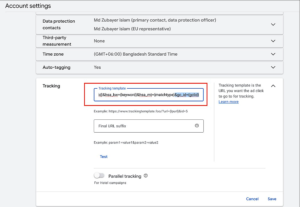
Step 1: Set Up the Custom Query Parameter in Google Ads
To start the Safari GCLID tracking fix, configure a custom query parameter in Google Ads to safely pass the click ID.
Navigate to your Google Ads account.
Go to Admin → Account Settings → Tracking.
Add a new query parameter to send the click ID.
Use a custom name like ZC_ID (or any unique parameter name).
This method helps protect your click ID because Safari 26 blocks default GCLID parameters, but does not block custom query parameters.
Figure 1: Custom Query Parameter Setup
Step 2: Test the Custom Query Parameter
Before implementing server-side tracking, verify that your custom parameter is working correctly.
Enter Preview Mode in your Web GTM container.
In the preview URL, manually append a demo value:
?ZC_ID=DEMO_CLICK_ID
Also, open Preview Mode in your Server GTM container.
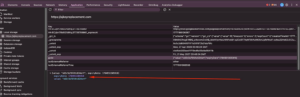
Connect to your website and inspect the incoming request.
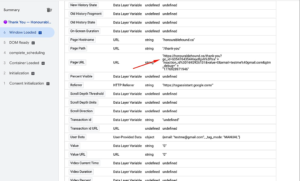
✔ You should see the page_location variable containing your URL with:
ZC_ID=DEMO_CLICK_ID
Figure 2: GTM Preview with Custom Parameter
Step 3: Capture GCLID Using GTM (Web Container)
To ensure accurate Google Ads tracking, capture the GCLID from the URL and store it as first-party data using GTM.
Go to GTM → Variables → New.
Create a URL Variable to capture the gclid parameter.
Variable Type → URL
Component Type → Query
Query Key → gclid
Next, create a First-Party Cookie variable to store the value:
Go to Variables → New
Variable Type → First-Party Cookie
Cookie Name → gclid
This ensures the GCLID is captured and persists even if Safari removes it from the URL.
Figure 3: GCLID Capture Setup
Step 4: Send GCLID to Server GTM Using GA4 Client
Now send the captured GCLID from Web GTM to Server GTM using GA4 events.
Go to GTM → Tags → New.
Create a GA4 Event Tag.
Configuration Tag → GA4 Configuration
Event Name → page_view
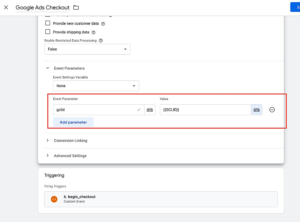
Under Event Parameters, add:
Parameter Name → gclid
Value → {{gclid variable}}
Trigger → All Pages
This sends the GCLID to the Server GTM container via the GA4 client for server-side processing.
Figure 4: GA4 Event Tag Setup
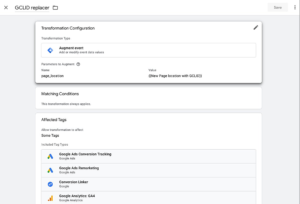
Step 5: Implement the Query Replacer Variable (Server GTM)
To fix the Safari 26 GCLID removal issue, create a Query Replacer variable in Server GTM.
Go to Server GTM → Variables → New Variable.
Open Template Gallery → Search: Query Replacer (by Stape.io).
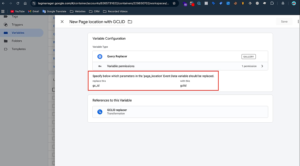
Configure the variable:
Input → Page Location
Replace Query → Old: ZC_ID → New: GCLID
Save the variable (example: Page Location with GCLID).
Figure 5: Query Replacer Variable Setup
Step 6: Final Verification
Once the setup is complete, verify your Google Ads server-side tracking for Safari 26.
Run Preview Mode in Server GTM.
Trigger a conversion event (e.g., form submission).
In SGTM Preview:
Inspect Conversion Linker or Google Ads Conversion Tag.
✔ Confirm that the page_location parameter now contains GCLID instead of ZC_ID, ensuring the replacement worked successfully.
➡️ Google Ads tracking documentation
Figure 6: Final Verification
Final Publish Step
Once everything is tested and verified, publish both your Web and Server GTM containers to activate your tracking system and ensure accurate data collection.
✔ Publish Web GTM container
✔ Publish Server GTM container
✔ Confirm GCLID is captured correctly
✔ Verify conversions in Google Ads
As a result, your Safari GCLID Removal Fix is complete, and accurate conversion tracking is fully restored.
Comparison: Default vs Server-Side Tracking (Safari GCLID Fix)
| Feature | Default Tracking | Server-Side Tracking |
| GCLID Protection | ❌ Removed by Safari | ✅ Fully protected |
| Data Accuracy | ❌ Low | ✅ High |
| Attribution | ❌ Broken | ✅ Accurate |
| Conversion Tracking | ❌ Incomplete | ✅ Full visibility |
| First-Party Tracking | ❌ No | ✅ Yes |
| Optimization | ❌ Weak signals | ✅ Strong signals |
| Safari Compatibility | ❌ Poor | ✅ Optimized |
| ROI Impact | ❌ Wasted spend | ✅ Improved ROI |
Tracking Overview
This system captures GCLID as first-party data at the moment of the ad click and securely stores it to prevent loss caused by Safari ITP restrictions. Then, GTM sends this data to the server container, where it is processed and forwarded to Google Ads during conversion events. As a result, this setup eliminates GCLID loss, improves attribution accuracy, and ensures consistent conversion tracking—even in privacy-restricted environments like Safari 26 and iOS devices.
Real Use Case
A lead generation agency implemented this system:
• 40% increase in tracked conversions
• Significant reduction in data loss
• Improved attribution clarity
• Better campaign scaling
➡️ For similar setups, check Unbounce Google Ads Conversion Tracking Guide
Common Mistakes
• Not capturing GCLID correctly at the initial landing stage
• Incorrect or short-lived cookie setup causing GCLID loss
• Missing server-side tracking implementation (GTM + server container)
• Not validating events in GTM Preview and Google Ads
As a result, these mistakes lead to incomplete data, inaccurate attribution, and poor campaign optimization.
Pro Tips
• Always capture and store GCLID as first-party data to prevent Safari stripping
• Combine GTM Web + Server container for reliable server-side tracking
• Validate events using GTM Preview and Google Ads diagnostics regularly
• Monitor attribution data and conversion paths inside Google Ads
Frequently Asked Question
How to fix GCLID tracking in Safari 26?
To fix Safari GCLID tracking fix, you need to capture the GCLID as first-party data and send it using Google Ads server-side tracking via GTM. This prevents Safari from removing the parameter and ensures accurate attribution.
Why is GCLID not working in Safari?
Safari blocks or strips tracking parameters due to Intelligent Tracking Prevention (ITP). As a result, gclid not working safari issues occur, causing missing conversions and inaccurate reporting.
What is the best solution for GCLID loss?
The most effective solution is Google Ads server-side tracking combined with first-party data storage. This approach protects GCLID and restores accurate conversion tracking.
Can I track Google Ads conversions without cookies?
Yes, partially. However, using first-party cookies along with server-side tracking provides the most reliable solution for maintaining attribution accuracy.
How do I verify GCLID tracking is working?
Use GTM Preview Mode and check Google Ads conversion diagnostics. Ensure GCLID is captured, stored, and sent with conversion events correctly.
Conclusion
Implementing a proper Safari GCLID Removal Fix is no longer optional—it’s essential for maintaining accurate Google Ads tracking in a privacy-first environment. By combining first-party data, GTM, and server-side tracking, you can protect your GCLID, eliminate attribution gaps, and restore reliable conversion reporting. As a result, your campaigns receive stronger optimization signals, improve performance, and scale more efficiently without wasting ad spend.
You can also explore: Full Funnel Tracking for Google Ads to build a complete tracking ecosystem.
Ready to fix your tracking system and recover lost conversions?
Set up Google Ads server-side tracking today and protect your GCLID from Safari restrictions.
WhatsApp: https://wa.me/8801735749155
Book a Call: https://zcal.co/zubayerislam01/consultation
