
Introduction
Typeform forms are often embedded inside websites using an iframe. Because of this iframe structure, default tracking methods cannot detect form submissions automatically. To track conversions accurately, we need a listener script that pushes Typeform submission events into the Data Layer and then use Google Tag Manager to send events to Meta Pixel and later to Conversion API.
In this setup we will implement Typeform iframe conversion tracking using GTM, capture the submission event through a listener code, and send events to Meta Pixel with parameters required for future Conversion API deduplication.
✔ This setup allows you to track:
➜ Typeform iframe submission events
➜ Meta Pixel PageView events
➜ Meta Pixel Lead conversion events
➜ Browser ID (fbp) and Click ID (fbc) parameters
➜ Event ID for Meta Pixel & Conversion API deduplication
Prerequisites
Before starting, make sure you have:
✔ Website with Typeform embedded as iframe
✔ Google Tag Manager installed on the website
✔ Meta Pixel created inside Meta Events Manager
✔ Typeform submission listener script implemented
✔ GTM preview mode working
 Need Help?
 Hire Me for Setup: WhatsApp Me
Book a Consultation: Schedule a Call
Step-by-Step Implementation
PART 1 – Verify Typeform iFrame Installation
Step 1: Confirm Typeform Is Embedded as iFrame
Open your website page where the Typeform is embedded.
Right click on the form area.
Select Reload Frame or View Frame Source.
If the frame source shows a URL like:
form.typeform.com
✔ This confirms the form is loaded as an iframe.
✔ You may also see “Powered by Typeform” inside the form.

PART 2 – Verify Google Tag Manager Installation
Step 2: Confirm GTM Is Installed
Open Google Tag Manager.
Check the container ID installed on your website.
Example: GTM-XXXXFK
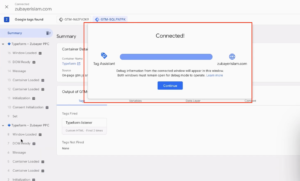
Open Preview Mode and connect your website URL.
✔ If preview connects successfully, GTM is working correctly.
PART 3 – Test Typeform Listener Script
Step 3: Submit Typeform and Check Data Layer
Fill out the Typeform using test data.
Example: Name, Email, Phone Number.
Click Submit.
Open GTM Preview panel.
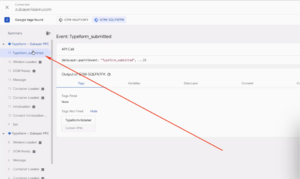
✔ If the listener code is working, you should see a custom event:
typeform_submitted
This confirms that the listener code is pushing the event into the Data Layer.
PART 4 – Create Meta Pixel Configuration Tag
Step 4: Create Meta Pixel ID Variable
Open GTM → Variables → New.
Create a Constant Variable.
Variable Name: Meta Pixel ID
Variable Type: Constant
Value: Your Meta Pixel ID
Save the variable.
PART 5 – Create FBP & FBC Variables
Step 5: Create Browser ID Variable (FBP)
Create a new variable.
Variable Type: First-Party Cookie
Cookie Name: _fbp
Variable Name: FBP
Save the variable.
Step 6: Create Click ID Variable (FBC)
Create another variable.
Variable Type: First-Party Cookie
Cookie Name: _fbc
Variable Name: FBC
Save the variable.
PART 6 – Create Event ID Variable
Step 7: Create Unique Event ID Variable
Open GTM → Templates → Search for:
Stape Unique Event ID Template
Add the template.
Create a new variable using this template.
Variable Name: Event ID
✔ This variable will be used for Meta Pixel & Conversion API deduplication.
PART 7 – Create Meta Pixel PageView Tag
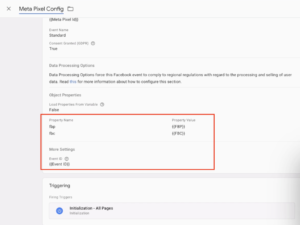
Step 8: Create Meta Pixel Config Tag
Open GTM → Tags → New.
Tag Type: Meta Pixel (Facebook Pixel Template)
Add the following parameters:
Pixel ID → {{Meta Pixel ID}}
Event Name → PageView
Browser ID → {{FBP}}
Click ID → {{FBC}}
Event ID → {{Event ID}}
Trigger → Initialization – All Pages
Tag Name: Meta Pixel Config
Save the tag.
PART 8 – Test Meta Pixel PageView
Step 9: Verify PageView in Meta Events Manager
Open Meta Events Manager → Test Events.
Reload your website.
✔ You should see a PageView event firing.
Verify that the event contains:
Event ID
Browser ID (fbp)
PART 9 – Create Typeform Submission Trigger
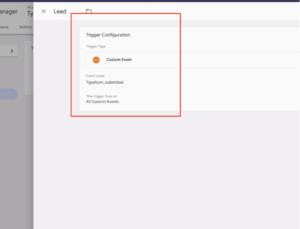
Step 10: Create Custom Event Trigger
Open GTM → Triggers → New.
Trigger Type: Custom Event
Event Name:
typeform_submitted
Trigger Name:
Typeform Submission Trigger
Save the trigger.
PART 10 – Create Meta Pixel Lead Event
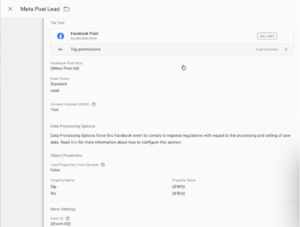
Step 11: Create Meta Pixel Lead Tag
Duplicate the Meta Pixel Config tag.
Change the following settings:
Event Name → Lead
Trigger → Typeform Submission Trigger
Keep these parameters:
Browser ID → {{FBP}}
Click ID → {{FBC}}
Event ID → {{Event ID}}
Tag Name: Meta Pixel Lead
Save the tag.
PART 11 – Test Typeform Lead Conversion
Step 12: Submit the Typeform Again
Open GTM Preview Mode.
Submit the Typeform again.
✔ Confirm the following:
➜ Typeform submission event fires
➜ Meta Pixel Lead tag fires
➜ PageView tag fires
Testing Meta Pixel Tracking
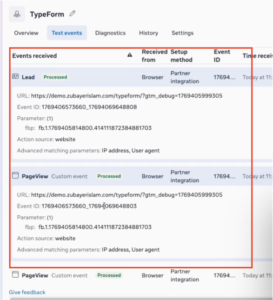
Open Meta Events Manager → Test Events.
Submit the Typeform again.
✔ You should now see:
PageView Event
Lead Event
If you are not coming from a Meta ad, the FBC parameter may be empty, which is normal.
Final Publish Step
Once testing is successful:
Publish the GTM container.
✔ Your Typeform iframe conversion tracking with Meta Pixel is now active.
In the next step you can implement Conversion API using Stape for server-side tracking.
Frequently Asked Questions
Why can’t GTM detect Typeform submissions automatically?
Because Typeform is embedded inside an iframe and standard form triggers cannot detect iframe submissions.
Why do we use a listener script?
The listener pushes Typeform submission events into the Data Layer so GTM can capture them.
Why do we send Event ID?
Event ID is required for Meta Pixel and Conversion API deduplication.
Why may FBC be missing?
FBC appears only when the visitor arrives from a Meta ad click.
Professional Conclusion
✔ After implementing this setup you now have:
➜ Typeform iframe conversion tracking
➜ Meta Pixel PageView event tracking
➜ Meta Pixel Lead conversion tracking
➜ Browser ID and Click ID parameters
➜ Event ID ready for Conversion API deduplication
This setup ensures reliable Typeform lead tracking through Meta Pixel using Google Tag Manager.
Need expert help setting up Typeform Meta Pixel & Conversion API tracking?
Hire Me for Setup: WhatsApp Me
Book a Consultation: Schedule a Call
