
Introduction
Accurate typeform conversion tracking is essential for measuring marketing performance and optimizing campaigns. However, Typeform forms embedded as iframes often fail to trigger standard browser-based tracking methods, resulting in inaccurate data and missed conversions.
As a Stape Certified Partner, I’ve implemented this exact setup for 50+ agencies worldwide and this guide covers every step you need to get it right the first time.
By implementing Google Tag Manager and server-side tracking, businesses can capture reliable conversion data, improve attribution, and maximize return on investment.
➡️ Google Tag Manager enables advanced tracking through custom scripts and structured Data Layer integrations.
To understand how data flows across platforms, explore Full Funnel Tracking for Google Ads using CRM, GTM & Stape.
🎥 Watch Now
Figure: Typeform Conversion Tracking Setup Using GTM & Stape
Typeform conversion tracking is the process of capturing and measuring form submissions using Google Tag Manager and Data Layer events. This method ensures accurate reporting across analytics and advertising platforms.
Why Is It Important?
Implementing Typeform tracking enables businesses to:
- Measure marketing performance accurately
- Capture conversions from embedded iframe forms
- Improve attribution and campaign optimization
- Eliminate data loss caused by browser restrictions
- Enhance ROI through data-driven decision-making
Quick Answer
Typeform conversion tracking captures form submissions using Google Tag Manager and Data Layer events. By implementing a custom listener and server-side tracking with stape.io , businesses can send accurate data to analytics and advertising platforms. This ensures reliable reporting, improved attribution, and higher ROI.
Key Takeaways
- Typeform conversion tracking ensures accurate measurement of embedded form submissions and eliminates data loss from iframe-based forms.
- Google Tag Manager enables scalable and reliable tracking through structured Data Layer events and custom triggers.
- Server-side tracking using stape.io improves data accuracy, enhances privacy compliance, and strengthens attribution.
- Implementing advanced tracking strategies improves campaign performance, optimizes marketing decisions, and maximizes return on investment.
Tools Used in This Setup
- Typeform
- Google Tag Manager
- Google Analytics 4 (GA4)
- Google Ads
- Meta Pixel (Facebook Pixel)
- stape.io
- Custom JavaScript Listener
- Data Layer Events
How the System Works (Simple Flow)
- A user submits a Typeform embedded as an iframe.
- A custom listener detects the submission event.
- The event is pushed into the GTM Data Layer.
- Google Tag Manager triggers conversion tags.
- Data is sent to GA4, Google Ads, and Meta Pixel.
- Server-side tracking processes data securely via Stape.
- Conversions are recorded for reporting and optimization.
Why It Matters
Accurate tracking ensures reliable attribution and performance analysis. Implementing Typeform conversion tracking helps businesses reduce data discrepancies, optimize campaigns, and make data-driven marketing decisions.
Prerequisites
- A website with an embedded Typeform iframe
- Google Tag Manager installed on the website
- Access to Google Analytics 4 and Google Ads
- Meta Pixel configured
- stape.io
Step-by-Step Implementation
PART 1 – Verify Typeform iFrame Installation
Step 1: Confirm Typeform Is Embedded as iFrame
Open your website page where the Typeform is embedded.
Right click on the form area.
Select Reload Frame or View Frame Source.
If the frame source shows a URL like:
form.typeform.com
✔ This confirms the form is loaded as an iframe.
✔ You may also see “Powered by Typeform” inside the form.
Figure 1: Typeform Iframe Source

PART 2 – Verify Google Tag Manager Installation
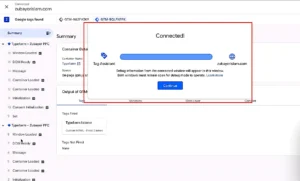
Step 2: Confirm GTM Is Installed
Open Google Tag Manager.
Check the container ID installed on your website.
Example: GTM-XXXXFK
Open Preview Mode and connect your website URL.
✔ If preview connects successfully, GTM is working correctly.
Figure 2: GTM Preview Connected
PART 3 – Test Typeform Listener Script
Step 3: Submit Typeform and Check Data Layer
Fill out the Typeform using test data.
Example: Name, Email, Phone Number.
Click Submit.
Open the GTM Preview panel.
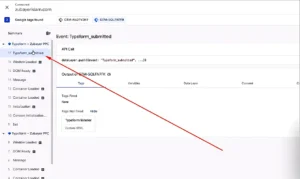
✔ If the listener code is working, you should see a custom event:
typeform_submitted
This confirms that the listener code is pushing the event into the Data Layer.
Figure 3: Typeform Submitted Event
PART 4 – Create Meta Pixel Configuration Tag
Step 4: Create Meta Pixel ID Variable
Open GTM → Variables → New.
Create a Constant Variable.
- Variable Name: Meta Pixel ID
- Variable Type: Constant
- Value: Your Meta Pixel ID
Save the variable.
PART 5 – Create FBP & FBC Variables
Step 5: Create Browser ID Variable (FBP)
Create a new variable.
- Variable Type: First-Party Cookie
- Cookie Name: _fbp
- Variable Name: FBP
Save the variable.
Step 6: Create Click ID Variable (FBC)
Create another variable.
- Variable Type: First-Party Cookie
- Cookie Name: _fbc
- Variable Name: FBC
Save the variable.
PART 6 – Create Event ID Variable
Step 7: Create Unique Event ID Variable
Open GTM → Templates → Search for:
Stape Unique Event ID Template
Add the template and create a new variable.
- Variable Name: Event ID
✔ This variable will be used for Meta Pixel & Conversion API deduplication.
PART 7 – Create Meta Pixel PageView Tag
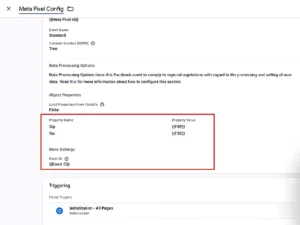
Step 8: Create Meta Pixel Config Tag
Open GTM → Tags → New.
- Tag Type: Meta Pixel (Facebook Pixel Template)
- Pixel ID: {{Meta Pixel ID}}
- Event Name: PageView
- Browser ID: {{FBP}}
- Click ID: {{FBC}}
- Event ID: {{Event ID}}
- Trigger: Initialization – All Pages
- Tag Name: Meta Pixel Config
Save the tag.
Figure 4: Meta Pixel Config Tag
PART 8 – Test Meta Pixel PageView
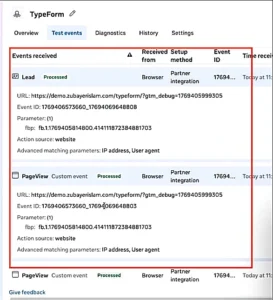
Step 9: Verify PageView in Meta Events Manager
Open Meta Events Manager → Test Events.
Reload your website.
✔ You should see a PageView event firing.
Verify that the event contains:
- Event ID
- Browser ID (fbp)
Figure 5: Meta Pixel PageView Event in Events Manager
PART 9 – Create Typeform Submission Trigger
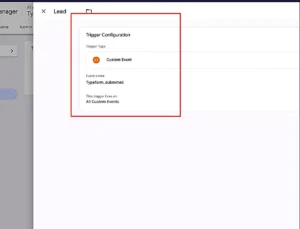
Step 10: Create Custom Event Trigger
Open GTM → Triggers → New.
- Trigger Type: Custom Event
- Event Name: typeform_submitted
- Trigger Name: Typeform Submission Trigger
Save the trigger.
Figure 6: Typeform Submission Trigger
PART 10 – Create Meta Pixel Lead Event
Step 11: Create Meta Pixel Lead Tag
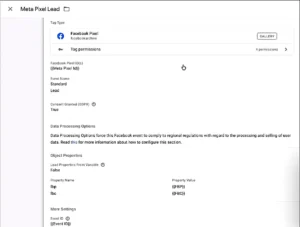
Duplicate the Meta Pixel Config tag and update the following settings:
- Event Name: Lead
- Trigger: Typeform Submission Trigger
Keep these parameters:
- Browser ID: {{FBP}}
- Click ID: {{FBC}}
- Event ID: {{Event ID}}
- Tag Name: Meta Pixel Lead
Save the tag.
PART 11 – Test Typeform Lead Conversion
Step 12: Submit the Typeform Again
Open GTM Preview Mode.
Submit the Typeform again.
✔ Confirm the following:
- ➜ Typeform submission event fires
- ➜ Meta Pixel Lead tag fires
- ➜ PageView tag fires
Figure 7: Meta Pixel Lead Tag Fired
Comparison: Default vs GTM-Based Typeform Tracking
| Feature | Default Tracking | GTM-Based Tracking |
| Tracks iFrame Forms | ❌ No | ✅ Yes |
| Google Ads Conversions | ❌ Limited | ✅ Accurate |
| GA4 Event Tracking | ❌ Unreliable | ✅ Reliable |
| Data Layer Integration | ❌ No | ✅ Yes |
| Server-Side Tracking | ❌ No | ✅ Yes |
| Attribution Accuracy | ❌ Low | ✅ High |
Tracking Overview
Typeform iframe forms cannot be tracked using default methods. Implementing a custom GTM listener and Data Layer ensures accurate event detection and reliable reporting across GA4, Google Ads, and Meta Pixel.
Real Use Case
A digital marketing agency implemented Typeform conversion tracking using GTM and Stape to measure lead conversions from paid campaigns.
Results Achieved:
- Accurate Typeform conversion tracking
- Improved Google Ads ROI
- Reliable GA4 analytics and reporting
- Enhanced attribution and performance optimization
For CRM-based attribution tracking, refer to GoHighLevel Booking Conversion Tracking with GTM (GA4 & Google Ads Setup Guide).
Common Mistakes
- Not implementing a custom listener for iframe forms
- Incorrect event naming in Google Tag Manager
- Missing Event ID for deduplication
- Improper trigger configuration
- Not testing in GTM Preview Mode
Pro Tips
- Use structured Data Layer events for scalable and reliable tracking.
- Validate events using GA4 DebugView and Meta Events Manager.
- Implement server-side tracking with stape.io for improved accuracy.
- To learn another iframe tracking implementation, explore Pipedrive iFrame Form Submission Tracking with GTM.
- For advanced form tracking techniques, refer to Advanced Squarespace Form Tracking with GTM (Form Listener + Data Layer).
Frequently Asked Question
What is Typeform conversion tracking?
Typeform conversion tracking is the process of measuring form submissions using Google Tag Manager and Data Layer events to ensure accurate reporting and optimization.
Why doesn’t default form tracking work with Typeform?
Because Typeform forms are embedded inside iframes, standard browser triggers cannot detect submissions.
How do I track Typeform in GA4 using GTM?
By implementing a custom listener and sending Data Layer events to Google Analytics 4 through Google Tag Manager.
What is the role of stape.io in tracking?
stape.io (referral link) enables server-side tracking, improving data accuracy and ensuring privacy-compliant measurement.
How do I verify Typeform conversions?
Use GTM Preview Mode, GA4 DebugView, and Meta Events Manager to confirm event firing and data accuracy.
Conclusion
Implementing typeform conversion tracking with Google Tag Manager and stape.io ensures accurate, reliable, and privacy-compliant data collection. This setup enhances attribution, improves campaign performance, and enables data-driven marketing decisions.
