
Introduction
Pipedrive forms are commonly embedded on websites as iframe forms. Since iframe forms do not trigger standard form submission events, a custom listener script is required to capture submission data accurately. Without proper tracking, businesses risk losing valuable lead insights and misattributing conversions.
As a Stape Certified Partner, I’ve implemented this exact setup for 50+ agencies worldwide — and this guide covers every step you need to get it right the first time.
➡️ Google Tag Manager enables advanced tracking by capturing iframe form submissions through custom scripts and structured data layers.
If you’re building a complete tracking ecosystem, explore Full Funnel Tracking for Google Ads using CRM, GTM & Stape to understand how data flows across marketing platforms.
This guide provides a structured, step-by-step framework for implementing Pipedrive iframe form tracking with GTM, allowing you to send accurate conversion data to Google Ads and GA4.
✔ This setup allows you to track:
➜ Pipedrive iframe form submissions
➜ Lead conversions in Google Ads
➜ Form submission events in GA4
➜ Data Layer–based form tracking through GTM
🎥 Watch Now
Figure: Pipedrive iFrame Form Tracking Setup Using GTM
Struggling to track Pipedrive iframe forms accurately?
I help businesses implement advanced tracking systems using GTM, GA4, and Google Ads for precise attribution and improved ROAS.
👉 WhatsApp: https://wa.me/8801735749155
👉 Book a Call: https://zcal.co/zubayerislam01/consultation
What Is Pipedrive iFrame Form Submission Tracking?
Pipedrive iFrame form submission tracking is the process of detecting successful submissions from embedded Pipedrive forms using Google Tag Manager and sending that conversion data to Google Ads and Google Analytics 4. This helps businesses track real leads accurately.
Why Is It Important?
Embedded iFrame forms often cannot be tracked properly using default browser triggers. Accurate tracking helps businesses measure lead generation performance and optimize campaigns using real conversion data.
• Measure real form submissions
• Improve Google Ads optimization
• Track leads inside GA4
• Reduce wasted ad spend
• Improve attribution accuracy
Quick Answer
Pipedrive iframe form tracking with GTM works by deploying a custom postMessage listener that detects form submission events from the Pipedrive iframe and pushes a structured event into the GTM Data Layer. Google Tag Manager then fires conversion tags that send accurate data to GA4 and Google Ads for reliable lead attribution.
Key Takeaways
- Pipedrive forms are embedded as iframes which do not trigger standard browser form submission events — a custom postMessage listener is required to detect submissions and push them into the GTM Data Layer accurately.
- Using GTM Data Layer events enables reliable conversion tracking across GA4 and Google Ads without modifying Pipedrive’s source code or requiring direct access to the iframe content.
- Implementing server-side tracking alongside the GTM listener improves data accuracy further by bypassing ad blockers and browser restrictions that prevent client-side conversion tags from firing.
- Testing with GTM Preview Mode and GA4 DebugView before publishing the container ensures the entire tracking chain works correctly end to end.
Tools Used in This Setup
• Pipedrive Embedded Forms
• Google Tag Manager
• Google Ads
• Google Analytics 4
• Data Layer Events
• Custom Event Trigger
• GTM Preview Mode
How the System Works (Simple Flow)
- A visitor lands on your page and fills out the embedded Pipedrive form.
- The successful submission is detected using a listener or custom event.
- Google Tag Manager captures the event.
- Conversion tags fire automatically.
- Google Ads and GA4 receive the conversion data.
- Reporting and optimization improve.
Why It Matters
Without proper iFrame form tracking, businesses lose valuable conversion data. Accurate Pipedrive form tracking helps Google Ads optimize better, improves lead attribution, and enables smarter scaling decisions.
Prerequisites
Before starting, ensure you have:
✔ Pipedrive iframe form embedded on your website
✔ Google Tag Manager installed on the page
✔ Google Ads account configured
✔ GA4 property set up
✔ Custom Pipedrive form listener code
✔ stape.io
If GTM is not installed, refer to How to Add Google Tag Manager to Your Website.
Step-by-Step Implementation
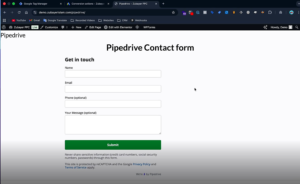
Step 1: Confirm Pipedrive Form is an iFrame
Open the page where the Pipedrive form is embedded.
Right-click the form and select View Frame Source.
Verify the form source domain shows:
webform.pipedrive.com
Figure 1: Pipedrive iFrame Form Source
Step 2: Verify Google Tag Manager Installation
Open Google Tag Manager.
Click Preview Mode.
Enter the website URL and connect.
If the preview connects successfully, Google Tag Manager is working correctly.
Figure 2: GTM Preview Connected

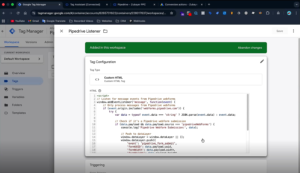
Step 3: Add Pipedrive Listener Code
Create a Custom HTML Tag in Google Tag Manager.
Add the listener code that listens for the Pipedrive iframe form submission.
Listener origin:
webform.pipedrive.com
Figure 3: Pipedrive Listener Script
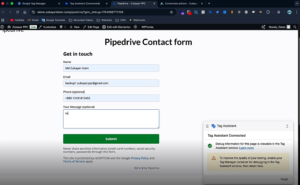
Step 4: Submit the Form
Fill out the Pipedrive form using test data and submit it.
Figure 4: Pipedrive Form Submission
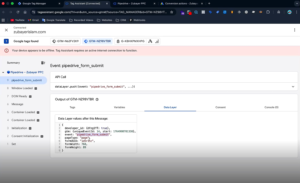
Step 5: Verify Data Layer Event
Open GTM Preview Mode and check the events.
You should see the event:
pipedrive_form_submission
Figure 5: Data Layer Event Detected
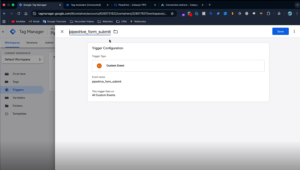
Step 6: Create Custom Event Trigger
Open GTM → Create a new trigger.
Trigger Type: Custom Event
Event Name: pipedrive_lead
Save the trigger.
Figure 6: Custom Event Trigger
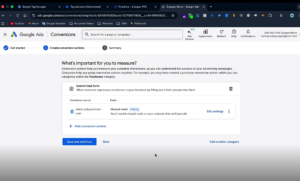
Step 7: Create Conversion Action in Google Ads
Open Google Ads → Create a new conversion action.
Conversion Type: Form Submission
Conversion Name: Pipedrive Lead
Implementation Method: Google Tag Manager
Copy the following:
- Conversion ID
- Conversion Label
Figure 7: Google Ads Conversion Setup
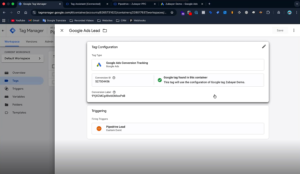
Step 8: Create Google Ads Conversion Tag
Open GTM → Create a new tag.
Tag Type: Google Ads Conversion Tracking
Add:
• Conversion ID
• Conversion Label
Trigger: pipedrive_lead
Save the tag.
➡️ Google Ads conversion tracking ensures accurate attribution and campaign optimization.
Figure 8: Google Ads Conversion Tag
Step 9: Create Google Tag
Create a new tag.
Tag Type: Google Tag
Add the Conversion ID.
Trigger: All Pages
Save the tag.
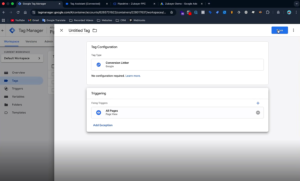
Step 10: Create Conversion Linker Tag
Create a new tag.
Tag Type: Conversion Linker
Trigger: All Pages
Save the tag.
Figure 9: Conversion Linker Tag
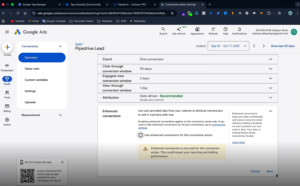
Step 11: Disable Enhanced Conversions
Pipedrive iframe forms do not send user data such as email or phone number. Therefore, disable Enhanced Conversions in the conversion tag.
Figure 10: Enhanced Conversion Disabled
Step 12: Test Conversion Tracking
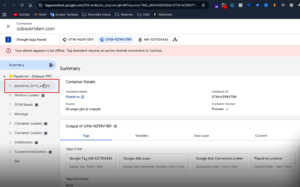
Open GTM Preview Mode again.
Submit the form using test data.
Confirm:
➜ Data layer event fires
➜ Google Ads conversion tag fires
➜ Conversion ID and label appear correctly
Figure 11: Conversion Tag Fired
For GA4 debugging guidance, read How to Track Pipedrive Forms in GA4 DebugView.
Final Publish Step
Publish the GTM container.
✔ Pipedrive iframe form submission tracking is now active.
Tracking Overview: Pipedrive iFrame Form Tracking with GTM
Pipedrive webforms are embedded as iframe forms and do not trigger standard browser submission events. A custom GTM listener captures submissions using postMessage, pushes the data into the Data Layer, and sends conversion events to GA4 and Google Ads for accurate tracking.
Tracking Flow:
User Submission → GTM Listener → Data Layer → GTM Tags → GA4 & Google Ads
Comparison: Default vs GTM-Based Pipedrive Tracking
| Feature | Default Tracking | GTM-Based Tracking |
|---|---|---|
| Tracks iFrame Submissions | ❌ No | ✅ Yes |
| Google Ads Conversion Tracking | ❌ Limited | ✅ Accurate |
| GA4 Event Tracking | ❌ Unreliable | ✅ Reliable |
| Data Layer Integration | ❌ No | ✅ Yes |
| Attribution Accuracy | ❌ Low | ✅ High |
Real Use Case: Tracking Pipedrive Leads from Google Ads
A B2B company embedded Pipedrive iframe forms on its landing pages but faced inaccurate conversion tracking. By implementing a custom GTM listener and Data Layer integration, they successfully tracked submissions in GA4 and Google Ads.
Results Achieved:
✔ Accurate Pipedrive lead tracking
✔ Improved campaign optimization and attribution
✔ Increased ROI through reliable conversion data
Common Mistakes
- Not implementing a custom iframe listener
- Incorrect event naming in GTM
- Missing Conversion Linker tag
- Improper trigger configuration
- Not testing in GTM Preview Mode
Pro Tips
- Use structured data layers for scalable tracking.
- Validate events using GA4 DebugView.
- Implement server-side tracking for improved data accuracy.
- Ensure consistent naming conventions across GTM tags.
To future-proof your tracking, explore Google Ads First-Party Server-Side Tracking with GTM & Stape.
Frequently Asked Question
What is Pipedrive iframe form tracking with GTM?
Pipedrive iframe form tracking is the process of capturing form submissions using Google Tag Manager and sending conversion data to GA4 and Google Ads.
Why is a listener required for Pipedrive forms?
Since Pipedrive forms are embedded as iframes, they do not trigger native submission events. A custom listener is required to capture the data.
Can I track Pipedrive forms in GA4?
Yes, using GTM and a data layer event, you can track Pipedrive form submissions in GA4.
Does this setup support Google Ads conversion tracking?
Yes, it enables accurate lead tracking and campaign optimization in Google Ads.
Why are Enhanced Conversions disabled?
Enhanced Conversions are disabled because iframe forms typically do not provide user data such as email or phone numbers.
Conclusion
Implementing Pipedrive iframe form tracking with GTM ensures accurate, reliable, and scalable conversion tracking. This setup enables precise reporting in GA4 and Google Ads, improves attribution, and enhances overall marketing performance.
Want to implement Pipedrive form tracking correctly?
I can help you set up a complete tracking system for accurate data, better attribution, and improved campaign performance.
👉 WhatsApp: https://wa.me/8801735749155
👉 Book a Call: https://zcal.co/zubayerislam01/consultation
