
Introduction
🎥 Watch Now
Figure 1: WPForms Tracking Flow (GTM → Data Layer → GA4)
Struggling to track WPForms conversions accurately?
Your tracking setup may be missing critical data, which leads to poor optimization and wasted budget.
👉 WhatsApp: https://wa.me/8801735749155
👉 Book a Call: https://zcal.co/zubayerislam01/consultation
What Is WPForms Conversion Tracking?
wpforms conversion tracking refers to capturing form submission events and sending them to Google Analytics 4 using wpforms google tag manager. These events allow you to track leads generated from WPForms.
As a result, GA4 can measure user actions accurately. Therefore, businesses can optimize campaigns using real conversion data.
Why Is It Important?
Without proper wpforms analytics, you cannot track leads effectively. However, missing data leads to poor decision-making. Therefore, wpforms tracking becomes critical.
- Accurate lead tracking
- Better campaign optimization
- Improved ROI
- Data-driven decisions
➡️ Learn more: How to Track Tally Form Submissions with GTM & Google Ads Conversion.
Quick Answer
wpforms conversion tracking is implemented using wpforms google tag manager to capture form submission events from your website and send them to GA4. Then, GTM pushes the event into Google Analytics 4 as a conversion event using proper triggers and tags. As a result, you can track leads more accurately, improve attribution, and optimize campaigns using reliable data for better performance and higher ROI.
Key Takeaways
- The default WPForms setup does not push structured events into the Data Layer, meaning GA4 cannot accurately track which forms are generating leads and which campaigns are driving conversions.
- Google Tag Manager with a custom Data Layer script captures WPForms submission events and sends them to GA4 as generate_lead events, giving you complete visibility into lead generation performance.
- Using a listener-based Data Layer script means your tracking works across all WPForms instances on your site, regardless of how many forms you have or which pages they appear on.
- Always validate your setup in both GTM Preview Mode and GA4 DebugView before publishing, confirming the wpform_submission event fires correctly with all expected parameters.
Tools Used
- Google Tag Manager
- Google Analytics 4
- WPForms
- Data Layer
- stape.io
How the System Works
First, a user submits a WPForms form on your website. Then, a custom script pushes the submission event into the data layer. Next, wpforms google tag manager captures this event and sends it to GA4 using a configured event tag. Meanwhile, GA4 processes the event and records it as a conversion (generate_lead). Finally, you can analyze user behavior, track lead performance, and optimize campaigns using accurate data.
Why It Matters
If wpforms conversion tracking ga4 is not configured correctly, you lose valuable lead data and attribution accuracy. As a result, campaigns rely on incomplete signals and optimization becomes ineffective. However, with a proper setup, tracking becomes reliable and consistent. Therefore, businesses can make data-driven decisions, improve campaign performance, and increase overall ROI.
Prerequisites
Before implementing wpforms conversion tracking, ensure the following requirements are met. This helps avoid errors and ensures smooth setup:
✔ Google Tag Manager installed and active
✔ GA4 property created and configured
✔ WPForms plugin installed on your website
✔ Access to website backend or CMS for script implementation
Step-by-Step Implementation
Step 1: Add the Data Layer Script Using GTM
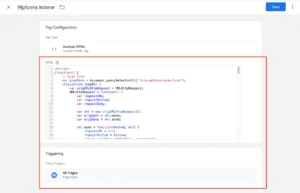
To track WPForms submissions, you need a script that pushes form submission events to the data layer. Instead of adding it directly to your website, add it using a Custom HTML Tag in GTM:
Log in to Google Tag Manager.
Navigate to Tags and click New.
Name it WPForms Data Layer Script.
Select Tag Type: Custom HTML.
Paste the following script inside the HTML box.
Set the Trigger to All Pages.
Click Save and publish the container.
Figure 2: WPForms Data Layer Script Setup
Step 2: Create a Custom Event Trigger in GTM
Log in to Google Tag Manager.
Navigate to Triggers and click New.
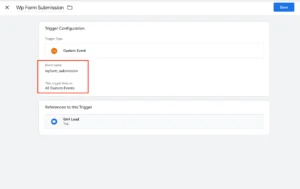
Name the trigger WPForms Submission.
Select Trigger Type: Custom Event.
Set the Event Name to “wpform_submission”.
Choose All Custom Events.
Click Save.
Figure 3: WPForms Custom Event Trigger
Step 3: Create a GA4 Event Tag in GTM
Go to Tags and click New.
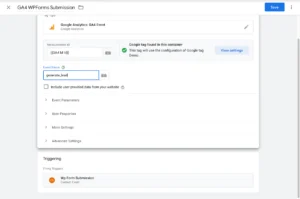
Name the tag GA4 – WPForms Submission.
Select Tag Type: GA4 Event.
Choose your GA4 Configuration Tag.
Set the Event Name to generate_lead.
Click Triggering and select WPForms Submission.
Save the tag.
Figure 4: GA4 Event Tag Setup
➡️ Google Analytics 4 event tracking guide (external link)
Step 4: Test the Setup in GTM
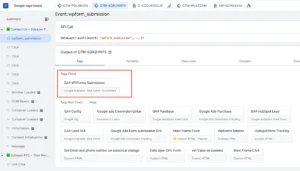
Click Preview in GTM and enter your website URL.
Submit a test WPForms form.
Check if the “wpform_submission” event appears in Tag Assistant.
Ensure the GA4 event fires successfully.
Figure 5: GTM Preview Testing
Step 5: Publish the GTM Container
If everything works as expected, click Submit in GTM.
Add a version name and description.
Click Publish.
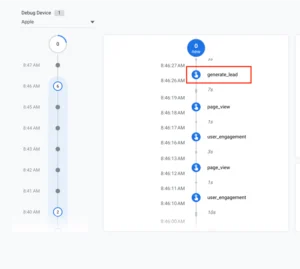
Step 6: Verify the Data in GA4
Open GA4 and go to Admin > DebugView.
Look for the generate_lead event.
Click on the event to check if it is being recorded.
Figure 6: GA4 DebugView Verification
Testing
Validate your setup using GTM Preview and GA4 DebugView. As a result, you can ensure that wpforms conversion tracking ga4 is working correctly before going live.
✔ Event triggered correctly in data layer
✔ GA4 event fired successfully
✔ Data visible in DebugView
✔ No tracking errors detected
Final Publish Step
Once testing is completed, publish your GTM container and monitor performance inside GA4. As a result, your wpforms tracking data will start syncing properly. Therefore, you can analyze real-time lead data and optimize campaigns based on accurate insights.
✔ Confirm conversion events are recorded
✔ Monitor real-time reports in GA4
✔ Validate lead tracking consistency
✔ Optimize campaigns based on data
Comparison: Default vs Advanced WPForms Conversion Tracking
| Feature | Default Tracking | Advanced Tracking |
| Data Accuracy | ❌ Limited tracking | ✅ Accurate event tracking |
| Attribution | ❌ Incomplete data | ✅ Full-funnel attribution |
| Optimization | ❌ Weak signals | ✅ Strong data signals |
| ROI Impact | ❌ Lower performance | ✅ Higher ROI |
| Data Coverage | ❌ Partial visibility | ✅ Complete tracking |
| Decision Making | ❌ Guess-based | ✅ Data-driven decisions |
Tracking Overview
This system uses wpforms google tag manager to capture form submission events and send them to GA4. Then, GA4 records the event as a conversion using structured data. As a result, businesses gain accurate tracking, improved attribution, and better optimization signals. In addition, this setup supports scalable tracking across multiple campaigns and funnels.
For deeper tracking systems, explore Full Funnel Tracking for Google Ads using CRM, GTM & Stape.
Real Use Case
A lead generation business implemented this wpforms conversion tracking setup using GTM and GA4. As a result, the company achieved measurable improvements in performance and data accuracy.
- 38% increase in tracked leads
- Conversion rate improved by 27%
- Cost per lead reduced significantly
- Campaign scaling became easier
Common Mistakes
Many tracking failures occur due to incorrect configuration and lack of validation. For example, missing key components can break the entire tracking flow. As a result, attribution becomes unreliable and performance drops.
- Missing data layer script implementation
- Incorrect trigger configuration in GTM
- Not testing tracking before publishing
- Using inconsistent event naming
Pro Tips
To ensure accurate wpforms conversion tracking, follow these best practices. In addition, consistent monitoring helps maintain long-term tracking reliability.
- Always test using GTM Preview and GA4 DebugView
- Use consistent naming like generate_lead for events
- Validate data layer implementation regularly
- Monitor GA4 reports for anomalies
Frequently Asked Questions
How to track wpforms conversions?
Use Google Tag Manager to capture WPForms submission events and send them to GA4. Add a Custom HTML tag in GTM with a listener script that pushes a wpform_submission event into the Data Layer whenever a form is submitted. Create a Custom Event trigger in GTM for wpform_submission and a GA4 Event tag using generate_lead as the event name. Test in GTM Preview Mode and GA4 DebugView before publishing your container.
Why is WPForms tracking not working?
The most common causes are a missing or incorrectly configured Data Layer listener script, wrong trigger configuration in GTM, or the GTM container not being published after changes are made. The listener script must fire on All Pages, not just the page with the form, so it is active when the form submission event fires. Always test using GTM Preview Mode to confirm the wpform_submission event appears in the Data Layer before publishing.
What event should I use in GA4?
Use generate_lead as your GA4 event name for WPForms submissions. This is Google’s recommended standard event for lead generation form submissions and it automatically populates GA4’s lead generation reports. Using a standard event name also makes it easier to set up conversion actions in Google Ads that import directly from GA4, giving your campaigns accurate lead conversion signals for Smart Bidding optimization.
Do I need GTM for WPForms tracking?
Yes, GTM is strongly recommended for WPForms conversion tracking. Without GTM, you cannot push custom Data Layer events from WPForms submissions into GA4 with structured parameters. GTM also allows you to send the same form submission data to Google Ads, Meta Pixel and other platforms simultaneously without modifying your WordPress theme code multiple times. The listener-based approach in GTM works across all WPForms instances on your site automatically.
How to verify wpforms conversion tracking ga4?
Open GTM Preview Mode and submit a test form on your WordPress site. Confirm the wpform_submission event appears in the Data Layer in GTM Preview. Then open GA4 DebugView in real time and verify the generate_lead event appears with correct parameters. After publishing, check GA4 Reports under Engagement, then Events to confirm that generate_lead is being recorded consistently. Allow 24 to 48 hours for conversion data to fully populate in GA4 reports.
Conclusion
Implementing wpforms conversion tracking ensures accurate lead tracking and better optimization. As a result, businesses can improve ROI and scale faster.
➡️ Learn more: Advanced Squarespace Form Tracking (Form Listener + Data Layer) | GA4 & Google Ads via GTM
Ready to fix your WPForms tracking and improve performance?
Get a complete GTM + GA4 setup for accurate data and better results.
👉 WhatsApp: https://wa.me/8801735749155
👉 Book a Call: https://zcal.co/zubayerislam01/consultation
