
Introduction
Accurate full funnel tracking google ads setup is essential for businesses that want to measure the complete customer journey from ad click to revenue. However, many advertisers only track form submissions and fail to connect CRM sales data back to Google Ads. As a result, attribution becomes incomplete, optimization signals weaken, and campaign scaling becomes difficult. Therefore, implementing full funnel tracking is critical for improving lead quality visibility and maximizing ROI.
As a Stape Certified Partner, I specialize in building advanced tracking systems using GTM, CRM integrations, server-side tracking, and enhanced conversions. This ensures accurate data flow, stronger attribution accuracy, and reliable performance tracking across the full funnel.
In this guide, you’ll learn how to implement full funnel tracking for google ads using CRM, GTM, and Stape server-side tracking. So that you can track leads, qualified opportunities, sales conversions, and actual revenue inside Google Ads. For advanced tracking systems, explore Google Ads First Party Server-Side Tracking with GTM & Stape and How to Make Future Proof Conversion Tracking in 2026 (Full Funnel System for Lead Generation). Full funnel tracking allows businesses to connect ad clicks, leads, CRM lifecycle stages, and revenue data into a single Google Ads attribution system.
🎥 Watch Now
Figure 1: Full Funnel Tracking Flow (Google Ads → GTM → CRM → Revenue)
Struggling to track actual revenue and qualified leads inside Google Ads?
Missing CRM attribution data can reduce optimization accuracy and waste ad spend.
👉 WhatsApp: https://wa.me/8801735749155
👉 Book a Call: https://zcal.co/zubayerislam01/consultation
What Is Full Funnel Tracking for Google Ads?
Full funnel tracking google ads refers to tracking the entire customer journey from ad click to final revenue using GTM, CRM integrations, server-side tracking, and Google Ads offline conversions. This includes tracking leads, qualified leads, converted customers, and revenue values directly inside Google Ads.
As a result, businesses gain better attribution visibility, improved lead quality tracking, and more accurate campaign optimization signals.
Why Is It Important?
Without proper google ads full funnel tracking, businesses only see partial conversion data such as form submissions. However, real business growth depends on tracking qualified leads, closed deals, and actual revenue. Therefore, full funnel tracking becomes essential for accurate attribution, smarter optimization, and revenue-focused campaign scaling.
• Track lead-to-sale attribution
• Measure actual revenue from campaigns
• Improve Google Ads optimization signals
• Connect CRM lifecycle stages with ad data
➡️ Learn more: Google Ads First Party Server-Side Tracking with GTM & Stape.
Quick Answer
Full funnel tracking google ads is implemented using GTM, CRM integrations, Stape server-side tracking, and Google Ads offline conversions. Then, lifecycle events such as leads, qualified opportunities, converted customers, and revenue values are sent back to Google Ads. As a result, businesses can optimize campaigns using actual sales and revenue data instead of basic form submissions.
Key Takeaways
- Full funnel tracking connects Google Ads clicks directly to CRM lifecycle stages and actual revenue, allowing businesses to measure lead quality, deal value and closed sales inside Google Ads instead of relying only on form submission counts.
- Server-side tracking via Stape is essential for full funnel attribution because it captures GCLID reliably, bypasses ad blockers and iOS restrictions, and ensures every form submission reaches Google Ads even when browser-based tracking fails.
- Sending CRM lifecycle events Raw Lead, Sales Qualified Lead and Converted Lead, back to Google Ads as offline conversions gives Smart Bidding the real business signals it needs to optimize toward revenue rather than raw lead volume.
- Enhanced Conversions with hashed email and phone number significantly improve attribution match rates for both online and offline conversion events, recovering conversions that would otherwise be invisible due to cookie restrictions and iOS privacy settings.
Tools Used
- Google Tag Manager
- Server-Side GTM
- Google Ads
- HubSpot CRM
- Stape.io
- GA4
- Google Tag Assistant
- Data Layer
➡️ Google Ads Offline Conversion Tracking Guide.
How the System Works
First, a user clicks a Google Ads campaign and submits a form on the landing page. Then, GTM captures the form submission event and sends the data to Server-Side GTM through the GA4 client. Next, lead data is stored inside the CRM and lifecycle stage updates trigger offline conversion events. Meanwhile, Google Ads receives conversion values, qualified lead signals, and revenue data for optimization. Finally, businesses can track the entire lead-to-revenue journey directly inside Google Ads.
Why It Matters
If businesses only track raw form submissions, Google Ads cannot optimize campaigns based on actual sales quality and revenue performance. As a result, low-quality leads may receive equal optimization priority. However, full funnel tracking helps advertisers optimize campaigns using real business outcomes instead of incomplete conversion signals.
Prerequisites
✔ Google Ads account
✔ GTM Web container
✔ Server-Side GTM container
✔ HubSpot CRM access
✔ Stape account
✔ Landing page or website
✔ Enhanced Conversions enabled
✔ Offline conversion tracking enabled
Step-by-Step Implementation
PART 1 – Verify Tracking Environment
Step 1: Prepare Required Tools
Prepare the following tools for the tracking setup:
Stape account
GTM Web container
Server GTM container
Website or landing page
HubSpot CRM
Google Ads account
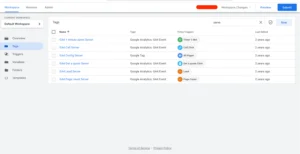
Figure 2: Tracking Environment
Step 2: Preview Web GTM and Server GTM
Open Google Tag Manager.
Click Preview Mode.
Connect the landing page URL.
Open preview mode for both Web GTM and Server GTM containers.
Figure 3: Web GTM Preview
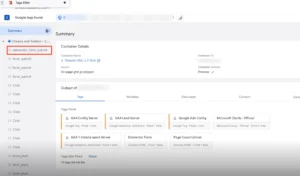
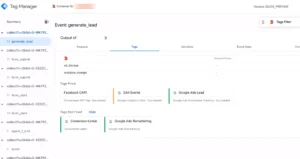
Figure 4: Server GTM Preview
PART 2 – Capture Landing Page Lead
Step 3: Capture Landing Page Form Submission
Open the landing page used in Google Ads campaigns.
Fill the form and submit it.
Step 4: Capture Form Submission Using Event Listener
An event listener code captures the Elementor form submission and pushes the event to the data layer.
Captured user data includes:
Name
Phone number
Email address
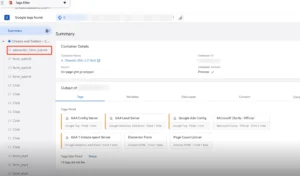
Figure 5: Lead Capture GTM
PART 3 – Send Event Data to Server GTM
Step 5: Send Data to Server-Side GTM
The data layer event is sent to Server GTM using the GA4 client.
Server GTM receives user data such as email, phone number and other information.
Step 6: Send Raw Lead Conversion
Server-Side GTM sends the form submission event to Google Ads as Raw Lead conversion.
Figure 6: Raw Lead Conversion
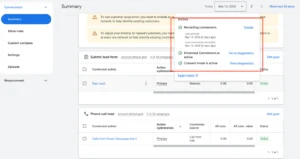
Step 7: Verify Conversion ID and Label
Open Google Ads conversion goals.
Check the conversion ID and conversion label to confirm they match the tracking setup.
Step 8: Store Lead Data in HubSpot
The website is connected with HubSpot CRM using the HubSpot WordPress plugin.
Form submission data is stored inside HubSpot Contacts.
PART 4 – Send Offline Conversion Events
Step 9: Send Sales Qualified Lead Conversion
Sales team reviews leads inside HubSpot.
When a deal is created, the lead becomes Sales Qualified Lead and this event is sent to Google Ads.
Figure 7: Qualified Lead
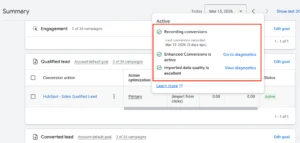
Step 10: Send Deal Value
When the deal is created, the deal value is sent to Google Ads as the conversion value.
Step 11: Track Converted Lead
When the deal is marked as Sale, HubSpot sends a Converted Lead conversion to Google Ads.
Figure 8: Converted Lead
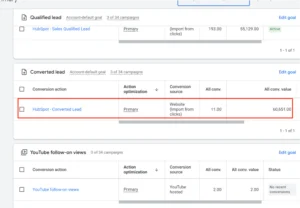
Step 12: Send Revenue Value
When the deal is marked as Sale, the actual revenue value is sent to Google Ads.
PART 5 – Configure CRM Conversion Events
Step 13: Configure HubSpot Ads Event Conditions
Inside HubSpot Ads Integration configure conversion events:
Sales Qualified Lead
Converted Lead
Events trigger when the lifecycle stage changes.
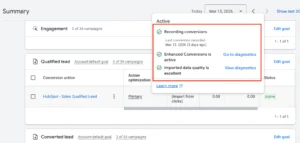
Step 14: Enable Enhanced Conversions
Google Ads receives user provided data including:
Email
Phone number
This enables Enhanced Conversions for both online and offline conversions.
Figure 9: Qualified Lead
PART 6 – Verify Analytics Tracking
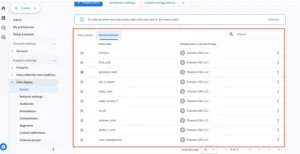
Step 15: Verify GA4 Tracking
GA4 receives online conversion events only from server-side tracking.
Tracked events include:
Generate Lead (form submission)
Phone Click Events
Other engagement events
Figure 10: GA4 Events
Step 16: Verify Full Funnel Tracking
Check Google Ads reporting to confirm the funnel stages:
Clicks
Raw Leads
Qualified Leads
Converted Leads
Testing
✔ Landing page lead captured successfully
✔ CRM lifecycle stages updating correctly
✔ Offline conversion events firing properly
✔ Revenue values sent to Google Ads
✔ Enhanced conversions validated successfully
✔ Full funnel attribution visible inside Google Ads
Final Publish Step
Confirm that:
Server-side tracking is active
HubSpot CRM integration is connected
Google Ads conversions are receiving data
✔ Your Full Funnel Tracking for Google Ads is now active.
Comparison: Basic vs Full Funnel Google Ads Tracking
| Feature | Basic Tracking | Full Funnel Tracking |
| Form Submission Tracking | ✅ Yes | ✅ Yes |
| CRM Lifecycle Tracking | ❌ No | ✅ Yes |
| Offline Conversion Tracking | ❌ No | ✅ Yes |
| Revenue Attribution | ❌ No | ✅ Yes |
| Qualified Lead Tracking | ❌ Limited | ✅ Accurate |
| Optimization Quality | ❌ Weak | ✅ Strong |
| Campaign Scalability | ❌ Limited | ✅ Better |
Tracking Overview
This system uses GTM, CRM integrations, offline conversions, and server-side tracking to connect Google Ads clicks with real business outcomes. Then, lifecycle stage updates and revenue values are sent back to Google Ads for optimization and attribution. As a result, businesses gain complete visibility into the customer journey from lead to revenue.
Real Use Case
A home services business running Google Ads with HubSpot CRM implemented this full funnel tracking setup using GTM, Stape server-side tracking, and offline conversion imports.
Before: only raw form submissions tracked, zero visibility into which campaigns generated qualified leads or closed deals.
After implementation:
- Cost per qualified lead dropped 44% in 60 days.
- Google Ads Smart Bidding shifted from optimising for form fills to closed deals.
- Revenue per campaign is now visible directly in Google Ads reporting.
- 3 underperforming campaigns identified and paused, saving $2,400/month in wasted spend
To implement a similar setup, follow Google Ads First Party Server-Side Tracking with GTM & Stape.
Common Mistakes
- Missing GCLID tracking inside CRM
- Incorrect offline conversion setup
- Not connecting CRM lifecycle stages properly
- Missing enhanced conversion configuration
- Skipping server-side tracking validation
- Failing to verify revenue attribution events
As a result, these issues can break attribution accuracy and reduce optimization performance.
Pro Tips
- Always validate GCLID storage inside the CRM
- Use server-side tracking for better attribution accuracy
- Send qualified lead events instead of only raw leads
- Track actual revenue values for smarter bidding optimization
Frequently Asked Questions
What is full funnel tracking in Google Ads?
Full-funnel tracking for Google Ads is the process of tracking the complete customer journey from ad click to final revenue using CRM integrations, GTM, offline conversions, and server-side tracking. Instead of only measuring form submissions, it connects CRM lifecycle stages, raw leads, qualified opportunities, closed deals and revenue values, directly back to the Google Ads campaigns that generated them. This gives Smart Bidding the real business signals it needs to optimize toward actual revenue rather than lead volume.
Why is CRM tracking important for Google Ads?
CRM tracking closes the gap between your ad platform and your actual business outcomes. Without it, Google Ads only sees form submissions; it has no visibility into which leads became qualified opportunities, which closed into customers, or what revenue each campaign generated. By connecting CRM lifecycle stage changes to Google Ads via offline conversions, your campaigns can optimize toward the leads that actually convert, not just the ones that filled out a form.
What is Google Ads offline conversion tracking?
Google Ads offline conversion tracking allows you to send CRM events, such as qualified leads, closed deals, appointments and revenue values — back into Google Ads after they happen offline. You match these events to the original ad click using the GCLID stored in your CRM at form submission. Google Ads then attributes the revenue or qualified lead signal to the specific campaign, ad group and keyword that generated it, enabling revenue-focused bidding optimization.
Do I need server-side tracking for full funnel attribution?
Yes, server-side tracking via Stape is strongly recommended for full funnel attribution. Browser-based ad blockers, iOS restrictions block tracking and Safari ITP mean a percentage of your form submissions never reach Google Ads at all. Server-side tracking sends the conversion signal directly from your server to Google Ads, bypassing all browser restrictions. This ensures the GCLID is captured reliably on every form submission, which is essential for accurate offline conversion imports later in the funnel.
How do I track revenue inside Google Ads?
Revenue tracking is implemented by sending CRM deal values and closed sale data into Google Ads through offline conversion imports. When a deal is marked as closed in your CRM, HubSpot exports the GCLID stored against that contact alongside the deal value. This data is imported into Google Ads either via CSV upload or the Google Ads API and attributed to the original ad click. Google Ads then uses real revenue values for Target ROAS bidding and campaign
performance reporting.
What CRM works best for full funnel tracking?
HubSpot CRM is the most practical choice for full funnel Google Ads tracking because it natively supports lifecycle stages, deal pipelines, Google Ads offline conversion imports and the HubSpot WordPress plugin for seamless lead capture. Pipedrive and Salesforce also work well for offline conversion imports. The most important requirement for any CRM is that it captures and stores the GCLID at the point of form submission. Without that, matching CRM events back to Google Ads clicks is impossible.
Conclusion
Implementing full funnel tracking in Google Ads using CRM integrations, GTM, and Stape server-side tracking helps businesses measure the complete customer journey from click to revenue. As a result, advertisers can optimize campaigns using qualified lead data, actual revenue values, and accurate attribution signals.
➡️ Learn more: How to Track WPForms Conversion with GTM and GA4.
Ready to track actual revenue and qualified leads inside Google Ads?
Get a complete CRM + GTM + Server-Side Tracking setup for accurate full funnel attribution and revenue tracking.
👉 WhatsApp: https://wa.me/8801735749155
👉 Book a Call: https://zcal.co/zubayerislam01/consultation
