
Quick Answer
Kajabi server-side tracking means routing GA4 and Meta Pixel events through a GTM server container hosted on Stape.io — so ad blockers, iOS privacy restrictions, and browser limits cannot block your conversion data. Specifically, you install GTM via Kajabi’s Site Details page, configure GA4 and Meta Pixel tags in the web container to forward events to a Stape-hosted server container using a first-party subdomain, then set up GA4 and Meta Conversions API tags in the server container to deliver events directly from your server. As a result, Kajabi course creators recover 20–35% of conversion events that browser-side tracking misses — giving Meta Ads and Google Ads accurate signals to optimize ad delivery toward buyers, not just clicks.
Key Takeaways
✅ Kajabi does not natively support GTM or server-side tracking.
You must install GTM manually through Kajabi’s Site Details → Site Scripts section. Because Kajabi does not push a standard ecommerce Data Layer, you also need a custom Data Layer script to capture purchase events, order values, and customer data from Kajabi’s order confirmation pages.
✅ Server-side tracking via Stape requires two GTM containers working together.
A web container installed on your Kajabi site captures browser-level events and forwards them to a server container. The server container — hosted on a Stape subdomain — then receives those events and delivers them to GA4 and Meta Conversions API, bypassing all browser-level blocking.
✅ Meta Pixel and Meta Conversions API must run simultaneously with event deduplication.
Both browser-side Pixel events and server-side CAPI events must use the same unique Event ID so Meta counts each conversion once — not twice. Without deduplication, running both paths simultaneously inflates your conversion count and corrupts your ad optimization signals.
✅ The first-party subdomain is the most critical component of the entire setup.
Without a custom subdomain pointing to your Stape server container, browser-side cookies are treated as third-party and get blocked by Safari ITP and iOS — making the server-side setup far less effective. Always configure a custom subdomain before going live with any server-side tags.
Introduction
Kajabi is one of the most popular platforms for course creators, coaches, and membership site owners. However, it comes with a significant tracking limitation — standard browser-side GA4 and Meta Pixel tags are blocked by ad blockers and iOS privacy restrictions at much higher rates than most platform owners realize.
For a Kajabi business running paid ads on Meta or Google, this means campaigns are optimizing on incomplete data. If 25–35% of purchase conversions are invisible to Meta’s algorithm, your Advantage+ campaigns and Smart Bidding make decisions based on the buyers they can see — not all of your buyers. As a result, ad delivery shifts toward lower-intent audiences and cost per acquisition rises.
As a Stape Certified Partner and Marketing Attribution Specialist, I implemented this exact server-side tracking architecture for a Kajabi client running Meta Ads and Google Ads. Therefore, this case study guide covers every step — GTM installation on Kajabi, custom Data Layer setup, Stape server container configuration, GA4 server-side setup, Meta CAPI with deduplication, and live validation.
🎥 Watch Now
Figure 1: Case Study: Server Side Tracking for Kajabi — GA4, Meta Pixel & GTM Setup
What Is Kajabi Server-Side Tracking?
Kajabi server-side tracking is the practice of routing your GA4 and Meta Pixel events through a server-side GTM container hosted on Stape.io — rather than firing them directly from the visitor’s browser.
In a standard browser-side setup, every tag fires from the visitor’s device. Ad blockers intercept those requests before they reach GA4 or Meta. iOS Safari’s Intelligent Tracking Prevention deletes third-party cookies within 24 hours. The result is a gap between real purchases and tracked conversions.
Server-side tracking closes that gap. Your Kajabi site sends events to your Stape server container using a first-party subdomain. The server container then forwards those events to GA4 and Meta Conversions API from the server — bypassing the browser entirely. As a result, ad blockers and iOS restrictions cannot interfere with the data flow.
For technical reference on the GTM server-side architecture, see the Google Tag Manager documentation from Google’s official developer docs.
Why Server-Side Tracking Matters for Kajabi
Kajabi course creators and membership site owners typically run significant paid ad budgets on Meta Ads and Google Ads. The audiences most likely to purchase online courses — tech-savvy professionals, iOS users, privacy-conscious buyers — are also the most likely to use ad blockers and opt out of cross-site tracking.
Without server-side tracking, Kajabi businesses face these problems:
- 20–35% of Meta Pixel purchase events are blocked by iOS and ad blockers. Consequently, Meta’s algorithm cannot see your best buyers.
- GA4 conversion data is incomplete. Therefore, you cannot accurately measure which campaigns or creatives drive real sales.
- Meta Event Match Quality (EMQ) scores are low because browser-side events carry less customer data than server-side events.
- Google Ads Smart Bidding receives fewer conversion signals. This results in less efficient bid optimization.
- Attribution windows shorten because third-party cookies are deleted by Safari ITP within 24 hours of the ad click.
With Kajabi server-side tracking properly implemented:
- All conversion events reach GA4 and Meta regardless of browser settings or iOS restrictions.
- Meta Conversions API delivers hashed customer email, phone, and purchase value directly to Meta’s servers — improving EMQ scores from Low to High.
- First-party subdomain tracking extends cookie lifetimes and improves attribution accuracy.
- Meta Advantage+ and Google Smart Bidding receive complete purchase signals. As a result, campaigns optimize toward actual buyers.
- Furthermore, you gain a permanent tracking infrastructure that becomes more valuable as browser privacy restrictions increase over time.
How the System Works — Complete Data Flow
Before building the setup, understand how all components connect. In other words, this is a seven-step data chain from a Kajabi visitor’s action to GA4 and Meta receiving the event.
Figure 2: Complete Data Flow — Kajabi Event Through Web GTM to Stape Server Container to GA4 and Meta CAPI
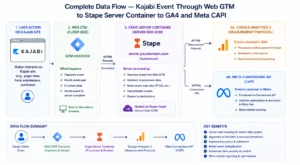
- Step 1 — First, a visitor lands on your Kajabi page from a Meta Ad or Google Ad click. The GTM web container fires the GA4 Configuration tag and Meta Pixel base tag on page load.
- Step 2 — Next, the visitor browses your Kajabi site. Each action — viewing a course page, clicking checkout, or completing a purchase — triggers events in the browser Data Layer.
- Step 3 — The GA4 web tag in GTM captures the event and sends it to your Stape server container via a first-party subdomain. This request uses first-party context, so it is not blocked by Safari ITP or ad blockers.
- Step 4 — The Stape server container receives the event. The GA4 client processes the payload and prepares it for delivery to GA4’s Measurement Protocol.
- Step 5 — The GA4 server tag forwards the event to Google Analytics 4 from the server — not the browser. GA4 receives complete event data including purchase value and transaction ID.
- Step 6 — Simultaneously, the Meta Conversions API tag sends the same event to Meta’s servers with hashed customer email, phone, _fbp and _fbc cookies, and purchase value. The same Event ID used by the browser Pixel ensures deduplication.
- Step 7 — Finally, both GA4 and Meta receive the event. Meta deduplicates using the Event ID so conversions are counted once. GA4 ecommerce reports populate with purchase data.
Prerequisites
Before starting this setup, make sure the following are in place:
- Kajabi account with admin access to Site Details and site scripts
- Google Tag Manager account — two containers needed: one Web container, one Server container
- Stape.io account for hosting the GTM server container (free tier available)
- Custom domain or subdomain available for first-party tracking (e.g. track.yourdomain.com)
- GA4 property with Measurement ID ready (G-XXXXXXXXXX)
- Meta Pixel with Pixel ID and Conversions API Access Token ready
- GTM Preview Mode access for testing both web and server containers
- GA4 DebugView and Meta Events Manager Test Events access for validation
IMPORTANT: Kajabi does not natively support server-side tracking or provide a standard ecommerce Data Layer. Therefore, you need to install GTM via Kajabi’s Site Scripts and add a custom Data Layer script to capture purchase events from the order confirmation page. This guide covers both steps.
Step-by-Step Implementation
Step 1: Install Google Tag Manager on Kajabi via Site Scripts
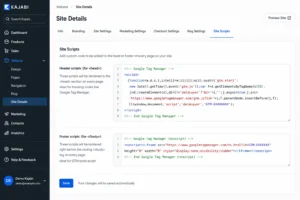
To begin, go to your Kajabi dashboard → Settings → Site Details → Site Scripts section.
From your GTM account, copy the GTM container snippet. Paste the <script> tag into the Header Scripts field and the <noscript> tag into the Footer Scripts field. Save changes.
CRITICAL: Kajabi’s Site Scripts apply globally across all pages. Therefore, GTM loads on every Kajabi page — including course pages, checkout pages, and order confirmation pages — which is exactly what you need for full-funnel tracking.
Figure 3: Kajabi Site Details — Site Scripts Section with GTM Head and Body Script Fields
Step 2: Create a GTM Server Container on Stape
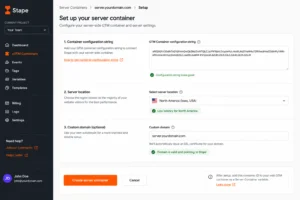
In Google Tag Manager, go to Admin → Create Container. Select Server as the target platform. Copy the server container configuration string that is generated.
Log into Stape.io. Create a new container, paste the configuration string, and select a server location closest to your primary audience. Stape provisions the server container automatically.
Next, set up your custom first-party subdomain in Stape. Create a CNAME record pointing track.yourdomain.com to the Stape-provided hostname. Then add your custom domain in Stape container settings and verify DNS.
CRITICAL: The custom subdomain is not optional. Without it, Safari ITP treats cookies as third-party and deletes them within 24 hours. Always configure and verify the custom subdomain before configuring any tags.
Figure 4: Stape Server Container Setup — Configuration String, Server Location, and Custom Domain
Step 3: Add Custom Kajabi Data Layer Script
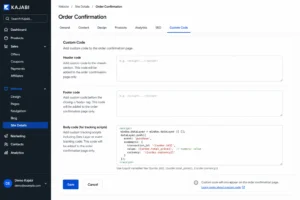
Kajabi does not push a standard GTM Data Layer with ecommerce purchase data by default. Therefore, add a custom script to Kajabi’s order confirmation page settings that pushes a structured purchase event to window.dataLayer on every completed order.
The custom script should push: ecommerce.value, ecommerce.transaction_id, ecommerce.currency, customer email, and product name. These values are read from Kajabi’s order confirmation page.
IMPORTANT: Always verify the Data Layer push is working in GTM Preview Mode by completing a real test purchase before configuring any tags. Confirm the “purchase” event fires with correct values in the Data Layer tab.
Figure 5: Kajabi Order Confirmation Page — Custom Data Layer Script for Purchase Event
Step 4: Configure GA4 Web Tag to Forward to Server Container
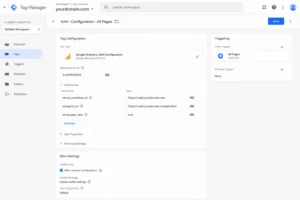
In your GTM web container, create a Google Tag with your GA4 Measurement ID. Under Configuration Settings, add a server container URL pointing to your Stape custom subdomain (e.g. track.yourdomain.com). This routes all GA4 events through your server container.
Set the trigger to Initialization — All Pages. Name the tag GA4 Config — Server and save.
Figure 6: GTM Web Container — GA4 Config Tag with Server Container URL Pointing to Stape Subdomain
Step 5: Configure Meta Pixel Web Tag with Unique Event ID
In your GTM web container, install the Meta Pixel base tag using the Facebook Pixel template from the GTM gallery. Enter your Pixel ID.
Add a Unique Event ID variable to every Meta event tag. This Event ID must match in both your web container Pixel tag and server container CAPI tag. Meta uses it to deduplicate events so each purchase is counted exactly once.
CRITICAL: The Unique Event ID must be generated once per page load and remain consistent across both browser Pixel and server CAPI for the same event. Different Event IDs across both paths means Meta counts the conversion twice — inflating reported conversions and corrupting ad optimization signals.
Step 6: Configure GA4 Tag in Server Container
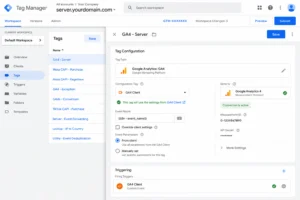
In your Stape server container, the GA4 Client automatically receives events forwarded from the web container. Create a GA4 server tag that reads from the GA4 Client and delivers events to Google Analytics 4 via the Measurement Protocol. The tag inherits all event parameters from the web container’s Data Layer push.
Figure 7: GTM Server Container — GA4 Server Tag Receiving Events from Stape GA4 Client
Step 7: Configure Meta Conversions API Tag in Server Container
In your Stape server container, create a Facebook Conversions API tag using the Stape CAPI template. Configure:
| Field | Value |
| Pixel ID | Your Meta Pixel ID from Meta Events Manager |
| API Access Token | Meta Events Manager → Settings → Generate Access Token |
| Event ID | Map to same Unique Event ID variable used in web Pixel tag |
| Value | Map to ecommerce.value from Data Layer |
| Currency | Map to ecommerce.currency from Data Layer |
| Customer Email (hashed) | Map to user_data.email_address (SHA-256 hashed) |
| Customer Phone (hashed) | Map to user_data.phone_number (SHA-256 hashed) |
| _fbp cookie | First-party cookie variable for Meta browser ID |
| _fbc cookie | First-party cookie variable for Meta click ID |
Hashed customer email and phone significantly improve Meta’s Event Match Quality (EMQ) score. For technical reference, see the Meta Conversions API documentation from Meta’s developer docs.
Step 8: Test and Validate the Complete Setup
Open GTM Preview on your web container and complete a full real test purchase on Kajabi. On the order confirmation page, confirm:
- GA4 Config — Server tag fired on all pages
- Meta Pixel base tag fired on page load
- “purchase” Data Layer event fired with correct value, transaction ID, and currency
- GA4 Purchase event tag fired with correct ecommerce parameters
- Meta Pixel Purchase event tag fired with correct Event ID
In Meta Events Manager → Test Events, enter the Test Event Code and verify both Browser (Pixel) and Server (CAPI) purchase events appear — each with the same Event ID confirming deduplication is working.
CHECK: In Meta Events Manager Test Events, the “Received From” column must show both “Browser” and “Server” for the same purchase event with matching Event IDs. If only “Browser” appears, the CAPI tag is not firing. If both appear with different Event IDs, deduplication is broken — revisit your Unique Event ID variable.
Browser-Side vs Server-Side Kajabi Tracking — Comparison
| Feature | Browser-Side Only | Server-Side via Stape |
| Ad blocker impact | ❌ Events blocked silently | ✅ Events bypass all blockers |
| iOS Safari ITP | ❌ Cookies deleted in 24 hrs | ✅ First-party cookies persist |
| Meta EMQ score | ❌ Low — limited customer data | ✅ High — hashed email + phone |
| GA4 purchase tracking | ❌ 20–35% events missing | ✅ Near-complete event capture |
| Meta CAPI support | ❌ Browser Pixel only | ✅ Pixel + CAPI hybrid with dedup |
| Attribution window | ❌ Short — 3rd-party limits | ✅ Extended — 1st-party domain |
| Customer data quality | ❌ Browser signals only | ✅ Server + hashed PII matching |
| Ad optimization signal | ❌ Incomplete buyer data | ✅ Full purchase signal to Meta + Google |
| ROAS measurability | ❌ Understated — events missing | ✅ Accurate — all events captured |
| Future privacy resilience | ❌ Gets worse every year | ✅ Built for long-term tracking |
Real Use Case — Kajabi Course Creator Running Meta Ads
A Kajabi course creator running Meta Advantage+ campaigns for an online coaching program had been using browser-side Meta Pixel tracking only. Despite generating 80–100 course sales per month, Meta attributed only 55–60 purchases — because approximately 30% of buyers were iOS users with ad tracking restricted.
Before server-side tracking implementation:
- Meta Pixel reporting 58 purchases in a 30-day period — actual Kajabi order count was 87
- Event Match Quality: Low — no hashed customer data passing from browser Pixel
- Meta Advantage+ campaigns optimizing toward 58 tracked buyers, missing 29 untracked iOS buyers
- Cost per purchase: $148 based on 58 attributed conversions
- GA4 showing 61 purchase events — same iOS attribution gap affecting Google data
After implementing Kajabi server-side tracking via Stape — 45 days:
- Meta now reporting 84 purchases in a comparable 30-day period — 45% increase in tracked conversions
- Event Match Quality improved from Low to High — hashed email + phone now passing via CAPI
- Meta Advantage+ shifted budget toward iOS user profiles within 2 weeks of complete data
- Cost per purchase dropped from $148 to $94 — a 36% reduction as Meta optimized toward complete buyer signals
- GA4 purchase event count aligned with Kajabi order count — zero attribution gap
Tools Used
| Tool | Purpose |
| Kajabi | Course and membership platform — site scripts for GTM installation |
| Google Tag Manager (Web) | Web container on Kajabi — captures browser events and forwards to server |
| Google Tag Manager (Server) | Server container on Stape — receives events and delivers to GA4 + Meta |
| Stape.io | Server container hosting + custom subdomain + Stape CAPI template |
| Google Analytics 4 | Receives server-side events — complete purchase and conversion reporting |
| Meta Pixel + CAPI | Browser Pixel for standard events + CAPI for server-side delivery with deduplication |
| GTM Preview Mode | Validates web and server container tag firing before publishing |
| GA4 DebugView | Real-time server-side event verification |
| Meta Events Manager | Test Events tool — validates Browser + Server events with deduplication |
Common Mistakes
Mistake 1 — Skipping the Custom First-Party Subdomain
The most common mistake in Kajabi server-side tracking setups is using the default Stape-provided URL instead of configuring a custom first-party subdomain. Without a custom subdomain, Safari ITP identifies the server as third-party and restricts it immediately. As a result, cookies set by the server are deleted within 24 hours. Therefore, always configure a custom subdomain before going live with any server-side tags.
Mistake 2 — Not Implementing Event Deduplication for Meta
Running both Meta Pixel (browser) and Meta CAPI (server) without a shared Unique Event ID causes Meta to count each conversion twice — once from the browser and once from the server. Consequently, your reported purchase count doubles and your campaign data becomes unreliable. Therefore, every Meta event tag in the web container and every CAPI tag in the server container must use the same Unique Event ID variable.
Mistake 3 — Missing Kajabi Data Layer for Purchase Events
Kajabi does not push ecommerce purchase events to the Data Layer automatically. As a result, without a custom Data Layer script on the order confirmation page, your conversion tags have no purchase data to send. Specifically, the GA4 purchase event fires with empty values and Meta CAPI sends a PageView instead of a Purchase. Therefore, always add and validate the custom Data Layer script before configuring any conversion tags.
Mistake 4 — Not Validating in Meta Test Events Before Going Live
Publishing the server-side setup without validating in Meta Events Manager → Test Events means you have no confirmation that the CAPI tag is actually reaching Meta’s servers. The GTM server container may appear to fire correctly in GTM Preview, but the CAPI tag can fail silently due to an incorrect API Access Token or wrong Pixel ID. Therefore, always use the Test Event Code to verify both Browser and Server events appear with matching Event IDs before removing the test code and going live.
Advanced Optimization Strategies
Tips 1: Track Kajabi Webinar and Lead Capture Pages Server-Side
Kajabi is used for more than course sales — webinars, lead magnets, and free challenges represent high-value conversion events that should be tracked server-side. Specifically, add ViewContent events for sales page visits, Lead events for opt-in form submissions, and CompleteRegistration for webinar signups — each with customer data passed through the server container for high EMQ scores. As a result, Meta’s algorithm builds accurate lookalike audiences from all funnel stages, not just final purchases.
Tips 2: Use Stape Template Library to Speed Up Configuration
Stape‘s server container templates include pre-built GA4 ecommerce variable mappings that automatically extract purchase value, transaction ID, items array, and currency from incoming GA4 events. Therefore, instead of manually creating each variable in the server container, import Stape’s GTM templates for both web and server containers — pre-configured with all necessary triggers, payloads, and event names. This significantly reduces setup time and eliminates the risk of incorrectly mapping ecommerce parameters.
Tips 3: Enable GA4 Ad Block Bypass in Stape for Complete GA4 Data
Stape.io offers a GA4 Ad Block Bypass option in server container settings. When enabled, it routes the GA4 tracking script itself through your first-party subdomain — so ad blockers cannot block the GA4 tag from loading. Specifically, enable this option in your Stape container settings and re-test in GTM Preview Mode to confirm GA4 tags fire correctly. This ensures even users with aggressive ad blockers contribute to your GA4 data — which is especially valuable for Kajabi audiences who tend to be privacy-conscious.
Tips 4: Monitor Meta Event Match Quality Score Weekly After Launch
After your Kajabi server-side tracking is live, monitor your Meta Event Match Quality (EMQ) score in Meta Events Manager weekly for the first 30 days. Specifically, navigate to Events Manager → your Pixel → Overview and check the EMQ score for your Purchase event. A score of 7.0 or above indicates strong matching. Scores below 6.0 suggest customer data parameters are missing or incorrectly hashed. If your EMQ score is low despite CAPI being active, check that customer email and phone are SHA-256 hashed and that the _fbp and _fbc cookie variables are correctly mapped.
Tips 5: Add Offline Conversion Tracking via Kajabi Webhook for Maximum Attribution
For high-ticket Kajabi offers with payment plans, browser-side and server-side tracking only captures the initial checkout event. Therefore, connect Stape.io‘s server container to Kajabi’s webhook system — which fires when an order status changes to completed — so every confirmed payment reaches Google Ads as an offline conversion and Meta as a server-side Purchase event. This is especially powerful for installment plan buyers who complete payment days after the initial ad click.
Frequently Asked Questions
Does Kajabi support server-side tracking natively?
No — Kajabi does not have native support for server-side tracking or GTM server containers. However, you can implement a complete server-side setup by installing GTM via Kajabi’s Site Scripts section and adding a custom Data Layer script for purchase events. Connect the GTM web container to a Stape-hosted server container via a first-party subdomain for full server-side tracking without any platform changes.
What events should I track server-side on Kajabi?
The most important server-side events for Kajabi are: Purchase (highest priority), InitiateCheckout, Lead (opt-in completions), CompleteRegistration (webinar signups), and ViewContent (sales page visits). All events should use matching Event IDs in both browser Pixel and server CAPI for deduplication. The Purchase event specifically must include hashed customer email, phone, order value, and transaction ID for maximum Meta Event Match Quality.
How does Meta Conversions API deduplication work with Kajabi?
Meta deduplication works by comparing the event_id parameter across browser Pixel and server CAPI events. When both paths send the same event_id for the same purchase, Meta counts it as one conversion. In GTM, create a Unique Event ID variable and assign it to both the Meta Pixel tag in the web container and the Meta CAPI tag in the server container for each event. As a result, Meta receives the purchase signal from two independent sources but counts it exactly once.
How long does Kajabi server-side tracking take to set up?
A complete Kajabi server-side tracking setup — including Stape provisioning, custom subdomain configuration, GA4 server-side setup, Meta CAPI with deduplication, custom Data Layer for purchase events, and full validation — typically takes 6–12 hours for an experienced specialist. DNS propagation for the custom subdomain adds 24–48 hours. Therefore, plan for 2–3 days from start to live validation, and always complete a real test purchase before considering the setup complete.
Can I use Stape’s free tier for Kajabi server-side tracking?
Yes — Stape.io‘s free tier provides sufficient server capacity for most Kajabi businesses starting out. The free tier includes server hosting, the GA4 client, Meta CAPI template, and custom subdomain support. As your Kajabi traffic grows, you may need to upgrade to a paid Stape plan for higher event volumes. Some advanced features — such as GA4 Ad Block Bypass — are only available on paid plans.
Does server-side tracking on Kajabi require a developer?
The setup does not require back-end development. GTM installation uses Kajabi’s Site Scripts (no coding required), the Stape server container is configured through a web interface, and GA4 and Meta tags are configured in GTM’s visual interface. However, the custom Data Layer script for Kajabi’s order confirmation page requires JavaScript knowledge. If you are not comfortable with JavaScript, working with a tracking specialist to implement and validate this script is strongly recommended.
Conclusion
In summary, Kajabi server-side tracking via Stape gives course creators and membership site owners the complete, accurate conversion data their advertising platforms need to optimize effectively. Because browser-side tracking alone loses 20–35% of purchase events from iOS users and ad blocker users, every Meta and Google campaign decision made without server-side data is built on a systematically incomplete picture.
As a result of implementing the GA4 and Meta CAPI server-side setup in this guide, your Meta Advantage+ campaigns receive complete buyer signals, Event Match Quality improves to High, cost per acquisition decreases, and your tracking infrastructure becomes resilient to future browser privacy changes. Ultimately, server-side tracking is not just a technical optimization — it is the foundation of profitable paid advertising for any Kajabi business.
Related Posts
- Google Ads Server-Side Tracking with GTM & Stape (Complete Setup Guide 2026)
- Full Funnel Tracking for Google Ads with CRM, GTM & Stape (2026)
- Meta Pixel & Conversion API Setup via GTM & Stape (Lead Event Tracking Tutorial)
Ready to Set Up Server-Side Tracking for Your Kajabi Site?
If your Kajabi business is running Meta Ads or Google Ads without server-side tracking, you are making campaign decisions without 20–35% of your conversion data. As a result, your campaigns are optimizing toward an incomplete picture of who your buyers actually are.
