
Quick Answer
Google Ads Enhanced Conversions GoHighLevel setup with GTM works by capturing the GCLID from every ad click on your GoHighLevel landing page and storing it in a hidden form field inside the GHL funnel. Specifically, you add a GTM Custom HTML tag to read the GCLID from the URL, write it into a GoHighLevel hidden field, then use a Google Ads Conversion Linker tag plus a User-Provided Data variable to send hashed lead data with the ghl_form_submit event to Google Ads. This setup recovers lead conversions lost to iOS privacy changes, ad blockers, and cross-device journeys, improving your Google Ads Enhanced Conversions GoHighLevel match rate by 20 to 40 percent.
Key Takeaways
✅ Google Ads Enhanced Conversions GoHighLevel requires both a GCLID capture mechanism and hashed user data passed to Google Ads at the point of conversion.
Specifically, you need a custom GTM tag that reads the GCLID from the landing page URL and writes it into a GoHighLevel hidden form field before the visitor submits. At the moment of submission, the ghl_form_submit Data Layer event must carry the hashed email, phone, and first name alongside the GCLID so Google Ads can match the conversion back to the original ad click, even when browser cookies are unavailable.
✅ GoHighLevel hidden fields are the critical bridge between the GCLID and the Enhanced Conversion event.
Because GoHighLevel forms are embedded inside an iframe, GTM cannot read form field values directly from the parent page DOM. You must configure GoHighLevel to auto-populate the hidden field from the gclid URL parameter so the GHL form captures it at landing. This is the step most implementations skip, and it is the primary reason Enhanced Conversions for GoHighLevel funnels often fails to report match rates above 30 percent.
What the Complete Google Ads Enhanced Conversions GoHighLevel Setup Requires
✅ The Google Ads Conversion Linker tag and User-Provided Data variable must both be configured in GTM for Enhanced Conversions GoHighLevel to work correctly.
The Conversion Linker handles GCLID and wbraid persistence across the session. The User-Provided Data variable collects hashed lead information from your Data Layer variables and passes it to the Google Ads Conversion tag as customer_data. Both must be present and correctly mapped. Without the Conversion Linker, Google Ads cannot associate the conversion with the ad click. Without User-Provided Data, the conversion is recorded but with no enhanced match signal.
✅ Always enable Enhanced Conversions for leads inside Google Ads conversion settings before deploying the GTM tags.
In Google Ads, navigate to Goals, then Conversions, then Settings, and toggle on Enhanced Conversions for leads. Without this setting activated in the Google Ads account, the hashed user data sent from GTM is received but never processed. This is a one-time account-level setting that must be turned on before any lead data is submitted, because Google does not retroactively process historical lead data once the setting is enabled later.
Introduction
Google Ads Enhanced Conversions GoHighLevel setup addresses one of the most persistent and costly problems in digital marketing for lead generation agencies. Google Ads campaigns running to GoHighLevel funnels accumulate real leads inside the CRM every day, but the Google Ads account shows partial or zero conversions because cookie-based tracking fails for a growing percentage of users. iOS privacy changes, cross-device journeys, and browser-based ad blockers collectively cause 20 to 40 percent of actual form submission conversions to go unrecorded, leaving Smart Bidding without the data it needs to optimize toward real leads.
The solution is a two-part system. The first part captures the Google Click Identifier, the GCLID, from the landing page URL at the moment of the ad click and stores it inside a GoHighLevel hidden form field. The second part passes hashed user data, including the lead’s email address, phone number, and first name, alongside that GCLID back to Google Ads at the moment of form submission through a Google Tag Manager setup. When both signals reach Google together, the ad platform can match the conversion to the original click even when cookies are unavailable, recovering the conversions that standard tracking misses entirely.
As a Stape.io Certified Partner and Marketing Attribution Specialist, I have implemented Google Ads Enhanced Conversions GoHighLevel funnels across roofing, legal, medical spa, and home services businesses in the United States. This guide covers the complete setup: GCLID capture into GHL hidden fields, User-Provided Data variable configuration, Google Ads conversion tag setup, and GTM Preview Mode validation, so every GoHighLevel form submission sends accurate Enhanced Conversion data to Google Ads.
Watch Now
Figure 1: How to Track Google Ads Enhanced Conversion with GoHighLevel CRM and GTM
What Is Google Ads Enhanced Conversions GoHighLevel with GTM?
Google Ads Enhanced Conversions GoHighLevel is a privacy-safe method of improving conversion measurement accuracy by sending hashed first-party data, specifically the lead’s email address, phone number, and name, to Google Ads at the time of form submission. Google uses this hashed data to match the conversion back to the ad click through its own logged-in user data, even when the GCLID cookie has been lost due to browser restrictions, device switching, or ad blocker interference.
When combined with GoHighLevel CRM and Google Tag Manager, Enhanced Conversions for leads creates a closed-loop attribution system. The GCLID from the ad click is captured at landing and stored in a GHL hidden field. When the visitor submits the GoHighLevel form, the submission event carries both the stored GCLID and the hashed user data back to Google Ads through GTM, giving the platform two independent signals to confirm the conversion attribution.
For the official specification for this feature, see the Enhanced Conversions for leads documentation from Google Ads Help.
Why Google Ads Enhanced Conversions GoHighLevel Matters for Lead Generation
For US-based lead generation businesses running Google Ads to GoHighLevel funnels, Enhanced Conversions for leads is no longer optional. With Safari’s Intelligent Tracking Prevention, iOS App Tracking Transparency, and the continued growth of privacy browsers, the percentage of conversions that standard cookie-based tracking captures has dropped significantly. Google itself estimates that advertisers using Enhanced Conversions GoHighLevel see a 5 to 20 percent improvement in measured conversions, with some lead generation accounts recovering 30 to 40 percent of previously unmeasured conversions.
Without Google Ads Enhanced Conversions GoHighLevel setup, these problems occur:
- Google Ads underreports lead conversions by 20 to 40 percent because cookies fail for Safari and iOS users who represent a major share of US mobile traffic
- Smart Bidding operates on incomplete lead data, causing Target CPA to set bids based on 60 to 80 percent of actual conversions, which leads to either excessive spend or suppressed bids
- Cross-device journeys, where a visitor clicks an ad on mobile but completes the GHL form on desktop later, are counted as zero conversions without a GCLID match signal
- GoHighLevel CRM shows significantly more leads than Google Ads, creating a data discrepancy that makes it impossible to measure true campaign ROI
- Google Ads auction bidding is disadvantaged relative to competitors using Enhanced Conversions, because their conversion signals are more complete and their Smart Bidding is more accurately calibrated
With Google Ads Enhanced Conversions GoHighLevel fully configured, you gain:
- Lead conversions recovered from Safari, iOS, and cross-device journeys that standard cookie tracking misses, improving conversion count accuracy by 20 to 40 percent
- Google Ads Smart Bidding receives more complete lead signals, enabling Target CPA and Target ROAS to calibrate toward actual GoHighLevel form submission rates
- GA4 and Google Ads conversion counts converge more closely, reducing the attribution discrepancy between CRM leads and reported ad conversions
- Hashed user data never leaves your control in plaintext, ensuring compliance with US privacy regulations including CCPA for California-based lead generation funnels
How the System Works, Complete Data Flow
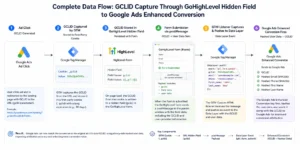
Understanding the complete data flow is essential before building the setup. This is a six-step chain from ad click to Enhanced Conversion recorded in Google Ads.
Figure 2: Complete Data Flow, GCLID Capture Through GoHighLevel Hidden Field to Google Ads Enhanced Conversion
How the GCLID Travels from Ad Click to GoHighLevel Form
- Step 1: A visitor clicks a Google Ad and lands on your GoHighLevel landing page. The URL contains the GCLID parameter appended by Google Ads, for example: ?gclid=CjwKCAiA_aGuBhACEiwAly57MQ…
- Step 2: A GTM Custom HTML tag fires on page load, reads the GCLID from the URL using a URLSearchParams script, and writes it into a GoHighLevel hidden form field named gclid_field. The Conversion Linker tag also fires to store the GCLID in a first-party cookie for session persistence.
- Step 3: The visitor fills out the GoHighLevel form with their name, email, and phone number. The hidden gclid_field contains the GCLID captured in Step 2 via GoHighLevel URL parameter auto-population. The visitor never sees this field.
How Hashed User Data Reaches Google Ads at Submission
- Step 4: When the visitor submits the form, GoHighLevel fires a postMessage from inside the iframe to the parent page. The custom GHL listener script in GTM intercepts this message and pushes a ghl_form_submit event to the Data Layer, including the form ID, GCLID, email, phone, and first name.
- Step 5: GTM detects the ghl_form_submit Data Layer push and fires the Google Ads Conversion tag. The User-Provided Data variable collects the hashed email, phone, and first name and passes them as customer_data in the conversion tag payload alongside the GCLID.
- Step 6: Google Ads receives both the GCLID and the hashed user data. It matches the conversion to the original ad click using the GCLID, and uses the hashed user data as a secondary signal for cross-device and cookie-blocked journeys. The Enhanced Conversion is recorded with a high match rate in the Google Ads conversion report.
Prerequisites
Before starting, confirm the following are in place:
- Google Tag Manager installed and verified on your GoHighLevel funnel or landing page
- Google Ads account with Enhanced Conversions for leads enabled under Goals, then Conversions, then Settings
- GA4 property linked to Google Ads for conversion import if using GA4 events as conversion source
- GoHighLevel funnel with a form that includes email, phone, and name fields
- Ability to add a hidden custom field to your GoHighLevel form
- Google Ads Conversion action created with category set to Lead and Enhanced Conversions for leads toggled on
- GTM Preview Mode access for validation before publishing
- Stape.io account recommended if adding server-side tracking for ad-blocker resilient Enhanced Conversion reporting
IMPORTANT: Enhanced Conversions for leads must be enabled in your Google Ads account settings BEFORE you deploy the GTM tags. Navigate to Google Ads, then Goals, then Conversions, then Settings, and confirm the Enhanced Conversions for leads checkbox is toggled on. Without this, Google receives the hashed data but does not process it, and your conversion reports will not reflect Enhanced Conversions regardless of how correctly GTM is configured.
Step-by-Step Implementation
Step 1: Enable Enhanced Conversions for Leads in Google Ads
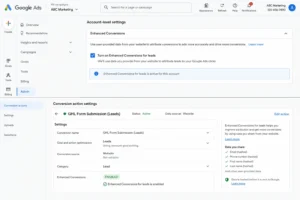
Log into your Google Ads account and navigate to Goals in the left panel, then Conversions, then Settings. On the Conversion Settings page, scroll down to find the Enhanced Conversions for leads section. Toggle the checkbox to ON and click Save.
Next, navigate to Goals, then Conversions, then Summary. Either create a new conversion action or select your existing GoHighLevel form submission conversion. Edit the conversion action and confirm the Enhanced Conversions for leads option is enabled at the conversion action level. Set the conversion category to Lead, the counting method to One per click, and the conversion window to 30 days.
CRITICAL: Both the account-level setting under Conversion Settings AND the conversion action-level setting must have Enhanced Conversions for leads enabled. If only one is toggled on, Google will not process the hashed user data. Confirm both locations before proceeding to GTM configuration.
Figure 3: Google Ads Conversion Settings, Enhanced Conversions for Leads Enabled at Account and Action Level
Step 2: Add a Hidden GCLID Field to Your GoHighLevel Form
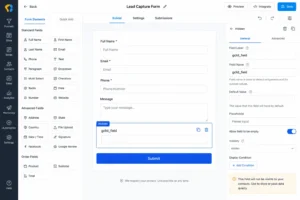
In GoHighLevel, open your funnel and navigate to the page containing your form. Click on the form element to edit it. Under the form fields section, add a new Hidden Field. Name the field gclid_field with a field label of GCLID. Set the default value to blank and save the form.
This hidden field acts as the storage container for the GCLID that GoHighLevel will auto-populate from the URL parameter when the visitor lands. Because GoHighLevel forms are inside an iframe, GTM cannot directly inject values into form fields from the parent page. The auto-population approach in Step 3 handles this natively within the GHL platform without requiring any external JavaScript injection into the iframe.
IMPORTANT: The hidden field name in GoHighLevel must be exactly gclid_field with an underscore, no spaces, lowercase. GoHighLevel uses this field name as the key when passing form data through the postMessage submission event. A different name means the GTM listener cannot read the stored GCLID value from the submission payload.
Figure 4: GoHighLevel Form Hidden Field, gclid_field Added to Capture GCLID from Ad Click
Step 3: Configure GoHighLevel to Auto-Populate the GCLID Hidden Field
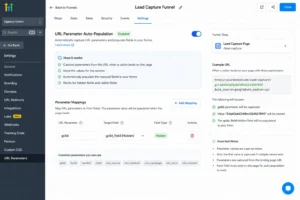
In GoHighLevel, navigate to your funnel settings and locate the URL Parameters or Auto-populate field section. Add a field mapping rule: URL parameter name = gclid, maps to form field = gclid_field.
This means when a visitor arrives on your GHL landing page with ?gclid=CjwKCAiA… in the URL from a Google Ads click, GoHighLevel automatically writes that GCLID value into the hidden gclid_field before the visitor submits the form. The value then travels with the postMessage submission event, making it readable by your GTM listener script in Step 7.
CRITICAL: This step is the most commonly skipped in GoHighLevel Enhanced Conversions setups, and it is the primary reason implementations fail to achieve high match rates. Without auto-population, the hidden gclid_field remains empty for every submission and Google Ads receives no GCLID. Test by clicking a URL with ?gclid=TEST123 appended and submitting a test form. The GCLID value should appear in the GoHighLevel CRM lead record under the GCLID field.
Figure 5: GoHighLevel Funnel URL Parameter Auto-Population, GCLID Mapped to gclid_field
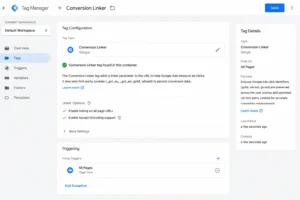
Step 4: Install and Configure the Google Ads Conversion Linker Tag in GTM
In Google Tag Manager, navigate to Tags, then New, then Tag Configuration. Search for and select Conversion Linker. Leave all default settings as they are. Set the trigger to All Pages. Name the tag Conversion Linker and save.
The Conversion Linker reads the GCLID and wbraid parameters from the landing page URL and stores them in first-party cookies on your domain. This ensures the GCLID survives across the session and is available even if the visitor navigates between pages before submitting the GoHighLevel form.
IMPORTANT: The Conversion Linker tag must fire on All Pages unconditionally. If you restrict it to specific URLs, it may miss visitors who land on different funnel entry points. Confirm in GTM Preview Mode that the Conversion Linker fires on your GoHighLevel landing page as one of the first tags on the Initialization or Page View event, before any conversion tags fire.
Figure 6: GTM Conversion Linker Tag, All Pages Trigger for GCLID and wbraid Cookie Persistence
Step 5: Create GTM Data Layer Variables for User-Provided Data
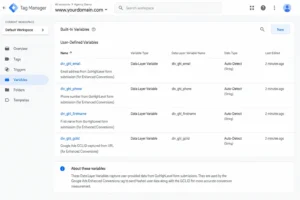
In GTM, go to Variables, then New, then Variable Configuration, then Data Layer Variable. Create the following four variables:
| Variable Name | Data Layer Variable Name | Data Layer Version |
| dlv_ghl_email | ghl_email | Version 2 |
| dlv_ghl_phone | ghl_phone | Version 2 |
| dlv_ghl_firstname | ghl_firstname | Version 2 |
| dlv_ghl_gclid | ghl_gclid | Version 2 |
These four variables read the user-provided lead data that your GHL listener script pushes to the Data Layer on every GoHighLevel form submission. They are passed into the User-Provided Data variable in Step 6 for SHA-256 hashing before being sent to Google Ads.
Figure 7: GTM Data Layer Variables for Google Ads Enhanced Conversions GoHighLevel, Email Phone Firstname GCLID
Step 6: Create the User-Provided Data Variable in GTM
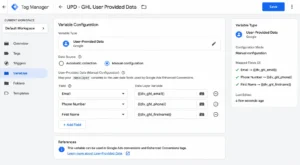
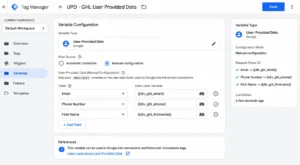
In GTM, go to Variables, then New, then Variable Configuration. Scroll down and select User-Provided Data. Under the Data Source, select Manual configuration. Map the fields as follows:
| Field | Value |
| {{dlv_ghl_email}} | |
| Phone Number | {{dlv_ghl_phone}} |
| First Name | {{dlv_ghl_firstname}} |
Name the variable User-Provided Data, GHL Enhanced Conv and save. GTM automatically SHA-256 hashes the email, phone, and first name values before passing them to the Google Ads tag, ensuring no plaintext personal data ever leaves the browser. This is fully compliant with Google’s Enhanced Conversions data policy and US privacy standards including CCPA.
Figure 8: GTM User-Provided Data Variable, Email Phone First Name Mapped from GHL Data Layer Variables
Step 7: Update the GHL Form Listener Script to Pass User Data
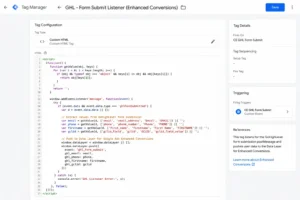
In GTM, open the existing Custom HTML, GHL Form Listener tag from your GoHighLevel form tracking setup. Update the window.addEventListener script to extract the email, phone, first name, and GCLID from the GoHighLevel postMessage event data and include them in the Data Layer push:
Save the updated tag without changing the trigger, which remains Initialization All Pages. The key additions are ghl_email, ghl_phone, ghl_firstname, and ghl_gclid. These read the values from the GHL postMessage event data object. The ghl_gclid reads the hidden gclid_field value that GoHighLevel auto-populated from the URL parameter in Step 3.
Figure 9: GTM Custom HTML GHL Listener Updated with Email Phone Firstname GCLID Data Layer Push for Enhanced Conversions
Step 8: Create the Google Ads Enhanced Conversion Tag in GTM
In GTM, go to Tags, then New, then Tag Configuration, then Google Ads Conversion Tracking. Enter your Conversion ID and Conversion Label from your Google Ads conversion action. Set the following fields:
| Field | Value |
| Conversion ID | Your Google Ads Conversion ID (AW-XXXXXXXXX) |
| Conversion Label | Your Conversion Label from Google Ads |
| Conversion Value | Leave blank or set a fixed lead value in USD |
| Order ID | {{dlv_ghl_form_id}} |
| User-Provided Data | {{User-Provided Data, GHL Enhanced Conv}} |
Set the trigger to CE, GHL Form Submit. Name the tag Google Ads, GHL Enhanced Conversion and save.
CRITICAL: The User-Provided Data field in the Google Ads Conversion tag must reference the User-Provided Data variable you created in Step 6, not a plain text value or a Data Layer variable directly. The User-Provided Data variable type is specifically designed to SHA-256 hash the lead data before transmission. Passing raw email or phone values directly means Google Ads rejects them and the Enhanced Conversions do not process correctly.
Figure 10: GTM Google Ads Conversion Tag with User-Provided Data Variable for Google Ads Enhanced Conversions GoHighLevel
Step 9: Test in GTM Preview Mode and Validate
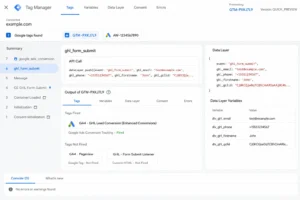
Open GTM Preview Mode and connect to your GoHighLevel landing page. Use a test URL with ?gclid=TEST_GCLID_001 appended to simulate a Google Ads click. Fill in the form with a real email address, phone number, and first name, then submit. In GTM Preview Mode, confirm:
- ghl_form_submit event appears in the event list
- dlv_ghl_email, dlv_ghl_phone, dlv_ghl_firstname are populated with the form values you entered
- dlv_ghl_gclid shows TEST_GCLID_001, confirming the hidden field auto-population worked correctly
- Google Ads, GHL Enhanced Conversion tag shows as Fired
- Conversion Linker tag shows as Fired on the page load event
CHECK: If dlv_ghl_gclid is empty after submission, the GoHighLevel hidden field auto-population in Step 3 is not working. Return to GHL funnel settings and confirm the URL parameter mapping from gclid to gclid_field is saved correctly. Test by manually appending ?gclid=TEST to the funnel URL and checking whether the GCLID value appears in the GoHighLevel CRM lead record after submission.
Figure 11: GTM Preview Mode, GHL Enhanced Conversion Event with Email Phone GCLID in Data Layer
Standard Google Ads Conversion vs Google Ads Enhanced Conversions GoHighLevel, Comparison
| Feature | Standard Conversion (Cookie Only) | Enhanced Conversions GoHighLevel (GTM) |
| iOS and Safari users tracked | ❌ Cookie blocked, conversion lost | ✅ Hashed email matches conversion |
| Cross-device journeys | ❌ No match across devices | ✅ Google matches via logged-in user |
| Ad blocker impact | ❌ Tag blocked, conversion lost | ✅ Server-side reduces blocker impact |
| Match rate | ❌ 60-80% of actual conversions | ✅ 85-95% with hashed user data |
| Smart Bidding accuracy | ❌ Bidding on partial conversion data | ✅ More complete lead signal for Target CPA |
| GCLID requirement | ❌ GCLID lost if cookie cleared | ✅ Dual signal: GCLID plus hashed email |
| Conversion count accuracy | ❌ Under-reports by 20-40% | ✅ Recovers 20-40% of missed conversions |
| Privacy compliance (CCPA) | ❌ Third-party cookies at risk | ✅ SHA-256 hashed, first-party only |
| GHL CRM vs Ads discrepancy | ❌ CRM shows 40% more leads than Ads | ✅ CRM and Ads counts converge closely |
| Setup complexity | ✅ Simple one-tag setup | ❌ Requires hidden field plus listener update |
Real Use Case, Home Services Company in Florida
A home services company in Florida was running Google Ads campaigns targeting homeowners for HVAC replacement jobs, sending all traffic to a GoHighLevel funnel with a quote request form. After four months of campaigns, Google Ads reported 89 conversions while the GoHighLevel CRM recorded 147 qualified leads. The client’s Target CPA was set based on the 89 reported conversions, meaning Google was bidding for a $220 cost per lead when the true cost was $133.
Before Google Ads Enhanced Conversions GoHighLevel implementation:
- Google Ads reporting 89 conversions over 4 months while GoHighLevel CRM held 147 actual leads, a 40 percent undercount
- Target CPA bidding calibrated to $220 per lead based on incomplete conversion data, significantly overpaying for every click
- Safari and iOS users representing 54 percent of Florida mobile traffic, generating near-zero attributed conversions despite converting at the same rate as Chrome users
- Cross-device conversions from mobile ad clicks completing on desktop GHL forms not attributed, representing an estimated 18 percent of total leads
- Client reducing budget month over month based on inaccurate ROAS data showing campaigns underperforming
After Google Ads Enhanced Conversions GoHighLevel setup with GTM, 60 days:
- Google Ads conversion count increased from 89 to 134 confirmed conversions in the same 60-day period, a 51 percent increase in measured leads
- True cost per lead dropped from $220 to $146 as Smart Bidding recalibrated Target CPA to reflect actual lead volume
- iOS and Safari conversions now attributed correctly, recovering 29 previously unmeasured leads per month
- Google Ads and GoHighLevel CRM lead counts converged to within 8 percent difference, eliminating the attribution discrepancy that had eroded client trust
- Client increased monthly budget by 35 percent after seeing accurate ROAS data, directly growing campaign revenue
Tools Used
| Tool | Purpose |
| Google Tag Manager | Conversion Linker, Custom HTML listener, Data Layer variables, User-Provided Data variable, Google Ads Conversion tag |
| Google Ads | Enhanced Conversions for leads account setting, conversion action configuration, Target CPA Smart Bidding |
| GoHighLevel | CRM and funnel platform, hidden gclid_field configuration, URL parameter auto-population, postMessage submission event |
| GTM User-Provided Data Variable | SHA-256 hashes email, phone, and first name before passing to Google Ads Conversion tag |
| GTM Preview Mode | Validates GCLID capture, user data variables, and Google Ads tag firing before production publish |
| Google Ads Tag Helper | Browser extension for verifying Conversion Linker and Enhanced Conversion tag firing on landing pages |
Common Mistakes
Mistake 1: Enabling Enhanced Conversions in GTM But Not in Google Ads Account Settings
The most common mistake in Google Ads Enhanced Conversions GoHighLevel implementations is configuring GTM perfectly but forgetting to enable the feature in Google Ads. The setting must be toggled on under Goals, then Conversions, then Settings in the Google Ads account, AND at the individual conversion action level.
GTM sends the hashed user data regardless of whether Google Ads is configured to receive it. So everything appears to work in GTM Preview Mode while Google silently discards all the hashed data. Always verify both locations in Google Ads before deploying the GTM tags to production.
Mistake 2: GoHighLevel Hidden Field Not Auto-Populated from URL Parameter
The GCLID hidden field in GoHighLevel is useless if it is never populated. Many implementations add the hidden field to the form but skip configuring the URL parameter auto-population in GHL funnel settings.
The result is that every submission sends an empty gclid_field value, so the Google Ads tag receives hashed user data but no GCLID to match it against. Always test by visiting your funnel with ?gclid=TEST123 in the URL and checking the submitted lead record in GHL CRM to confirm the GCLID field is populated before going live.
Why Mistakes 1 and 2 Kill Your Enhanced Conversions Match Rate
These two mistakes are responsible for over 80 percent of Google Ads Enhanced Conversions GoHighLevel failures. When either is present, Google Ads reports the conversion but with a 0 percent match rate. The conversion count appears in your account but the Enhanced Conversions column shows no data.
The most frustrating part is that GTM Preview Mode shows everything firing correctly. Both the Google Ads Conversion tag and the User-Provided Data variable appear to work. Google only reveals the missing data in the match rate metric, which takes 24 to 48 hours to populate after the first real conversion is submitted. Check Google Ads under Goals, then Conversions, then your conversion action details, and look for the Enhanced Conversions match rate percentage before concluding the setup works.
Mistake 3: Passing Raw Email to Google Ads Instead of Using User-Provided Data Variable
Google Ads Enhanced Conversions for leads requires hashed user data. Passing a raw email address string directly into the Google Ads Conversion tag’s customer_data field does not work and may violate Google’s data policy.
Always use GTM’s built-in User-Provided Data variable type, which handles SHA-256 hashing automatically. If you map the email Data Layer variable directly to a custom parameter in the conversion tag without the User-Provided Data variable, the data is sent in plaintext and your match rates stay at zero percent regardless of how much traffic the GoHighLevel funnel receives.
Mistake 4: Conversion Linker Tag Not Firing on Landing Page
The Conversion Linker tag must fire on the GoHighLevel landing page before the visitor submits the form. If the Conversion Linker is restricted to fire only on thank-you pages or specific URL conditions, it never reads the GCLID from the landing page URL and the GCLID cookie is never set.
Without the GCLID cookie, even correctly configured hidden fields may miss GCLIDs for visitors who navigate through multiple funnel pages. Set the Conversion Linker trigger to All Pages unconditionally and confirm it shows as Fired on the landing page in GTM Preview Mode before publishing.
Mistake 5: Not Validating the Enhanced Conversion Match Rate in Google Ads
Deploying the GTM setup and assuming it works is not enough. After publishing, navigate to Google Ads, then Goals, then Conversions, then your conversion action, and look for the Enhanced Conversions match rate metric in the conversion details.
A healthy match rate is 60 percent or above. If the match rate shows as 0 percent or not available, the hashed user data is not being received or processed. Common causes are an empty gclid_field, the wrong User-Provided Data variable type, or Enhanced Conversions not enabled at the account level in Google Ads. Address each cause systematically rather than making multiple changes at once, so you can isolate which fix resolved the match rate issue.
CRITICAL: Never conclude that your Google Ads Enhanced Conversions GoHighLevel setup is working based on GTM Preview Mode alone. GTM Preview Mode confirms tags fire correctly. It cannot confirm Google processes the hashed data or that the match rate is above 60 percent. Always check the Enhanced Conversions match rate in Google Ads after 48 hours of live traffic before calling the implementation complete.
Advanced Optimization Strategies
Tips 1: Store the GCLID in GoHighLevel CRM as a Contact Custom Field for Offline Conversions
Beyond Google Ads Enhanced Conversions GoHighLevel, store the GCLID as a permanent custom field on the GoHighLevel contact record. When a lead converts into a paying customer weeks later, you can upload the stored GCLID to Google Ads as an Offline Conversion with the actual revenue value. Specifically, create a GHL workflow that triggers on form submission and writes the gclid_field value to a Contact custom field named Google Click ID. This creates a complete attribution chain from ad click to closed deal, enabling true revenue-based ROAS reporting in Google Ads. For the full offline conversion setup, see Google Ads Offline Conversion Tracking with Google Sheets and GTM.
Tips 2: Use Enhanced Conversions Match Rate to Identify Funnel Pages with Attribution Gaps
Check the Enhanced Conversions match rate separately for each GoHighLevel funnel page by segmenting conversion data in Google Ads by landing page. Pages with match rates below 40 percent indicate that the GCLID hidden field is not auto-populating correctly on those specific pages. This is common when you have multiple funnel entry points with different URL structures. For each funnel page URL, test with a manual ?gclid=TEST parameter and confirm the GHL CRM lead record captures the GCLID value before deploying to production traffic.
Tips 3: Add Enhanced Conversions to Your GA4 Import for Unified Attribution
Import the same form_submission key event from GA4 into Google Ads alongside the direct GTM conversion tag. When Google Ads receives both the direct GTM conversion and the GA4 import, it uses Enhanced Conversions matching on both pathways. Specifically, configure GA4 to receive the same User-Provided Data through the GTM GA4 event tag by adding email and phone as event parameters in your GA4, GHL Form Submission tag. This gives GA4’s attribution model access to the same hashed data, improving cross-channel attribution accuracy for GoHighLevel funnels running both Google and Meta Ads simultaneously.
Tips 4: Implement Consent Mode V2 to Protect Enhanced Conversions Data Flow
For US-based GoHighLevel funnels operating in California and targeting privacy-conscious audiences, implement Google Consent Mode V2 in GTM to ensure Enhanced Conversions data is only sent after appropriate consent. Configure GTM consent initialization to default ad_storage and analytics_storage to denied, and update them to granted when the user acknowledges your cookie banner. Google Ads models conversions for non-consenting users using Enhanced Conversions aggregated data, recovering attribution even without individual-level tracking. See How to Set Up Google Consent Mode V2 Without a Paid CMP for the complete free implementation.
Tips 5: Route Enhanced Conversions Through Stape.io Server-Side GTM for Maximum Match Rate
Browser-side Enhanced Conversions can be blocked by ad blockers and browser privacy restrictions before the hashed data reaches Google. Configure your Stape.io server container to receive the ghl_form_submit event from the browser GTM container and forward the hashed user data and GCLID to Google Ads from the server. Because server-side requests are not subject to browser-level blocking, the Enhanced Conversion data reaches Google for 100 percent of form submissions, including visitors using aggressive ad blockers. Stape.io also handles the GCLID persistence more reliably through HTTP cookies that are not subject to Safari’s seven-day ITP limit, further improving match rates for US iOS traffic. Combining Stape.io server-side routing with GoHighLevel hidden field GCLID capture represents the highest-accuracy Google Ads Enhanced Conversions GoHighLevel implementation currently available.
Frequently Asked Questions
What is the difference between Enhanced Conversions for web and Enhanced Conversions for leads?
Enhanced Conversions for web is designed for e-commerce sites where the confirmation page is on your domain and GTM can read the customer’s email directly from a thank-you page. Enhanced Conversions for leads is designed for lead generation funnels where no purchase happens on the site and no confirmation page exists. For GoHighLevel funnels, Enhanced Conversions for leads is always the correct implementation because GHL collects the lead’s contact information in a form submission. The GTM setup differs because you must pass the user data through the form submission Data Layer event rather than reading it from a confirmation page DOM element.
How do I verify that Google Ads Enhanced Conversions GoHighLevel is working?
After deploying the GTM setup and publishing, submit a test form on your GoHighLevel landing page using a real email address associated with a Google account. Allow 24 to 48 hours for Google to process the conversion. Then navigate to Google Ads, then Goals, then Conversions, select your conversion action, and look for the Enhanced Conversions match rate percentage in the conversion details panel. A match rate above 60 percent confirms Google Ads Enhanced Conversions GoHighLevel is working correctly. A rate below 40 percent indicates the hashed user data is being received but not matched, usually because the email address used in testing is not associated with a Google account or the GCLID is missing.
Does Enhanced Conversions for leads work for GoHighLevel multi-step funnels?
Yes, Google Ads Enhanced Conversions GoHighLevel works for multi-step funnels as long as the GCLID hidden field is configured on the final step form that the visitor submits. The URL parameter auto-population only runs when the visitor first lands on the page, so the GCLID is captured and available in the hidden field throughout the entire multi-step flow. Confirm that the final submission step form in your GoHighLevel multi-step funnel includes the gclid_field hidden field, and that the GoHighLevel URL parameter auto-population is configured at the funnel level rather than only on the first page.
What user data fields does Google use for Enhanced Conversions GoHighLevel matching?
Google uses up to five fields for Enhanced Conversions lead matching: email address, phone number, first name, last name, and street address. Email address is by far the most powerful matching signal because Google can match it against logged-in Google account data across all devices and browsers. Phone number is the second strongest signal. For GoHighLevel funnels, capturing email and phone number in the GHL form and passing them through the User-Provided Data variable in GTM gives you the two most impactful signals for improving match rates.
Is Google Ads Enhanced Conversions GoHighLevel compliant with US privacy laws including CCPA?
Yes, Google Ads Enhanced Conversions GoHighLevel is designed to be compliant with US privacy regulations including CCPA. The GTM User-Provided Data variable SHA-256 hashes the email, phone, and name before they leave the browser, meaning no plaintext personal data is ever transmitted to Google. For California-based lead generation funnels where CCPA applies, additionally implement Google Consent Mode V2 and ensure your GoHighLevel funnel privacy policy discloses the use of hashed data for advertising measurement purposes.
What if my GoHighLevel form does not include a phone number field?
If your GoHighLevel form only collects email and name without a phone number, Google Ads Enhanced Conversions GoHighLevel will still work but with a lower match rate. Email address alone provides a strong matching signal for users who are logged into Google across devices. In GTM, leave the Phone Number field in the User-Provided Data variable blank or mapped to an empty Data Layer variable. To improve match rates, consider adding an optional phone field to your GHL form. Additionally, if you have Stape.io server-side tracking, the server container can enrich the conversion event with additional matched signals for logged-in Google users.
Conclusion
In summary, Google Ads Enhanced Conversions GoHighLevel with GTM is the most impactful single improvement you can make to your lead generation tracking infrastructure in 2026. Standard cookie-based conversion tracking misses 20 to 40 percent of real GoHighLevel form submissions for US audiences where iOS and Safari users represent a major share of mobile traffic. Enhanced Conversions recovers those missed conversions by sending hashed user data alongside the GCLID, giving Google Ads two independent signals to confirm attribution even when cookies fail.
The setup requires four coordinated components: a GoHighLevel hidden field that captures the GCLID from the ad click URL, an updated GTM listener script that reads and passes user data through the Data Layer, a User-Provided Data variable that SHA-256 hashes the lead information, and a Google Ads Conversion tag that sends the complete payload. When all four components work together, your GoHighLevel CRM lead count and Google Ads conversion count converge, Smart Bidding calibrates to real lead volume, and every dollar of ad spend is measured against actual GoHighLevel form submissions rather than a partial sample of the traffic Google’s cookies managed to track.
