
Introduction
🎥 Watch Now
Figure 1: Offline Conversion Tracking Flow (GTM → Google Sheets → Google Ads)
Struggling to track offline conversions in Google Ads?
Your data is incomplete, which breaks attribution and wastes budget.
👉 WhatsApp: https://wa.me/8801735749155
👉 Book a Call: https://zcal.co/zubayerislam01/consultation
What Is Offline Conversion Tracking Google Ads?
offline conversion tracking google ads is a method that allows businesses to track conversions that happen outside the website, such as calls, qualified leads, or offline sales. These conversions are captured using GCLID or user data and then imported back into Google Ads.
As a result, Google Ads can accurately connect each offline conversion to the original ad click. Therefore, this system ensures complete attribution, stronger optimization signals, and better campaign performance across the full funnel.
Why Is It Important?
Without proper tracking, your campaigns rely only on online events. However, this creates major attribution gaps. Therefore, offline conversion tracking with gtm ensures complete visibility and accurate reporting.
• Accurate lead and sales attribution
• Better campaign optimization
• Improved ROI and bidding decisions
• Full-funnel visibility
➡️ Learn more: Google Ads Offline Conversion Tracking with HubSpot CRM (Complete Setup Guide).
Quick Answer
Google Ads offline conversion tracking with GTM and Google Sheets works by capturing the GCLID from every ad click using a hidden form field, storing it alongside lead data in Google Sheets, and then uploading the GCLID with conversion details back to Google Ads when a deal is closed — allowing Google to attribute real revenue to the specific campaigns and keywords that generated it.
Key Takeaways
- GCLID capture at form submission is the foundation of offline conversion tracking. Without storing the Google Click ID alongside every lead, it is impossible to attribute closed deals later back to the specific ad clicks that generated them.
- Google Sheets provides a simple no-code solution for storing GCLIDs and uploading offline conversions without requiring CRM integration or developer involvement.
- The Conversion Linker tag in GTM is mandatory for offline conversion tracking because it stores the GCLID in a first-party cookie that persists across pages; without it, Google Ads cannot match conversions to clicks.
- Uploading offline conversions daily rather than weekly gives Google Ads Smart Bidding fresher signals for optimization and improves campaign performance more quickly.
Tools Used
• Google Tag Manager (GTM)
• Google Ads
• Google Sheets
• Apps Script
• Data Layer
• stape.io
How the System Works
First, a user clicks your ad and a GCLID is captured and stored in the browser. Then, when a lead or conversion occurs, GTM collects user data and sends it to Google Sheets. Next, Google Ads imports this data and matches it with the original ad click using the GCLID. Finally, offline conversions are recorded in Google Ads, improving attribution accuracy and campaign optimization.
Why It Matters
If offline conversions are not tracked, Google Ads optimizes campaigns based on incomplete data, leading to poor performance and wasted budget. However, gclid offline conversion tracking ensures accurate attribution, better bidding decisions, and improved campaign results.
Prerequisites
✔ Google Ads account with conversion tracking access
✔ GTM properly installed on your website
✔ Google Sheets access for storing conversion data
✔ Defined conversion goals (lead, sale, qualified lead)
✔ GCLID tracking enabled and functioning correctly
Step-by-Step Implementation
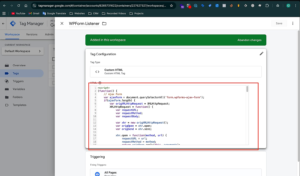
Step 1: Google Ads Standard Conversion Tracking (Using WFP Form Listener Code)
- Create a Custom HTML Tag in GTM
In GTM, create a Custom HTML tag.
Paste your WFP Form Listener code.
Save & publish. - Create Variables
Data Layer Variable: Email
Data Layer Variable: Phone
Data Layer Variable: Hashed Email
Data Layer Variable: Hashed Phone - Create Tags to Store GCLID in Local Storage
Create a New Tag in GTM.
Tag Type: Store GCLID in Local Storage
Trigger: All Pages
Save & publish.
Figure 2: Form Listener & GCLID Storage
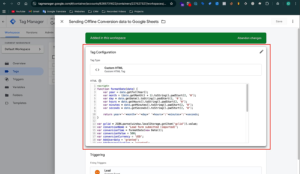
Step 2: Create Tags in GTM to Send Offline Conversion Data to Google Sheets
Create a New Tag in GTM.
Tag Type: Send Offline Conversion Data to Google Sheets
Trigger: Lead submission
Save & publish.
Figure 3: Send Data to Google Sheets
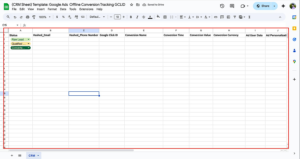
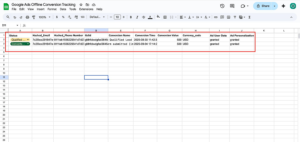
Step 3: Create a Google Sheet
Open Google Drive → Create New Google Sheet.
Add headers in the first row:
Timestamp | GCLID | Hashed Email | Hashed Phone | Conversion Name | Conversion Time | Conversion Value | Currency | Status
Figure 4: Google Sheets Setup
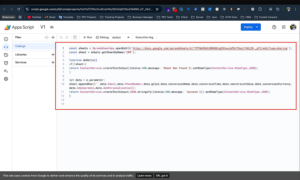
Step 4: Add an App Script to Google Sheets
In Google Sheet → Extensions → Apps Script
Paste Apps Script code to receive GTM data
Deploy & get the Script URL
Copy the URL → Paste into GTM Tag → Save & Publish
Figure 5: App Script Setup
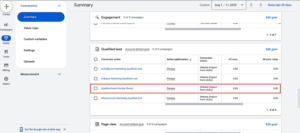
Step 5: Create an Offline Conversion Action in Google Ads
Log in → Tools & Settings → Conversions → + New Conversion
Choose Import → CRM, File & Other Sources → Track conversions from clicks
Select Google Sheets → Direct Connection
Map Columns → Filter Status = Qualified Lead
Set Upload Frequency → Save
Figure 6: Google Ads Conversion Setup
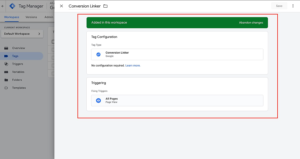
Step 6: Install Google Ads Conversion Linker in GTM
In GTM → New Tag
Tag Type → Google Ads Conversion Linker
Trigger: All Pages
Save & Publish
Figure 7: Conversion Linker
Step 7: Testing & Validation
Submit a test lead with GCLID
Verify Google Sheet receives data
Ensure conversion appears in Google Ads
Figure 8: Testing Flow
Testing
Validate your setup using GTM Preview, Google Sheets, and Google Ads diagnostics.
✔ GCLID captured correctly
✔ Data sent successfully
✔ Conversion imported
✔ No errors
Final Publish Step
Once testing is complete, publish your GTM container and monitor google ads offline conversion import performance.
✔ Confirm conversions recorded
✔ Check upload status
✔ Validate attribution
✔ Monitor campaign performance
Comparison
| Feature | Default Tracking | Advanced Offline Tracking |
|---|---|---|
| Data Accuracy | ❌ Partial website-only data | ✅ Complete online + offline data |
| Attribution | ❌ Limited to page events | ✅ Full-funnel attribution using GCLID |
| Optimization Signals | ❌ Weak and incomplete | ✅ Strong and data-rich signals |
| ROI Impact | ❌ Lower due to missing conversions | ✅ Higher due to accurate data |
| Conversion Coverage | ❌ Only online actions | ✅ Online + offline conversions |
| Automation | ❌ Manual and inconsistent | ✅ Automated via GTM + Sheets |
| Data Matching | ❌ Cookie/session based | ✅ GCLID + user data matching |
| Scalability | ❌ Limited growth potential | ✅ Highly scalable system |
| Decision Making | ❌ Partial insights | ✅ Fully data-driven decisions |
Tracking Overview
This system captures GCLID and user data through GTM and sends it to Google Sheets. Then, Google Ads imports this data and matches conversions with ad clicks. As a result, every qualified lead or sale is properly attributed.
In addition, businesses gain accurate tracking data, improved attribution clarity, stronger optimization signals, and better campaign performance.
Real Use Case
A lead generation business implemented this system. As a result, performance improved significantly:
• 40% increase in tracked conversions
• CPL reduced from $25 → $14
• Conversion rate improved by 32%
• ROAS increased by 2.1x
➡️ For similar setups, check Unbounce Form Conversion Tracking for Google Ads (Enhanced Conversions) via GTM
Common Mistakes
- Not capturing GCLID correctly at the initial click stage
- Missing or incorrectly configured Google Sheets integration
- Incorrect conversion mapping (columns, status, or conversion name mismatch)
- Skipping proper testing in GTM Preview and Google Ads
As a result, these mistakes lead to incomplete data, broken attribution, and unreliable campaign performance.
Pro Tips
- Always validate GCLID capture and storage across all pages
- Use a structured and consistent Google Sheets format for clean data handling
- Test conversion uploads regularly before going live
- Monitor Google Ads diagnostics and conversion status for errors
Frequently Asked Questions
How to set up offline conversion tracking Google Ads?
To implement offline conversion tracking google ads, use GTM to capture GCLID and user data, send it to Google Sheets, and import it into Google Ads for accurate attribution and reporting.
What is GCLID in offline tracking?
GCLID (Google Click Identifier) is a unique parameter added to ad URLs that helps match offline conversions with the original ad click inside Google Ads.
Why are offline conversions not tracking?
Offline conversions may not track due to missing GCLID capture, incorrect Google Sheets setup, or errors in conversion import configuration within Google Ads.
How to verify offline conversions?
Verify tracking by checking data in Google Sheets, confirming successful uploads in Google Ads, and reviewing conversion status in the diagnostics section.
Do I need Google Sheets for offline tracking?
Google Sheets is one of the easiest and most accessible methods to store and transfer offline conversion data before importing it into Google Ads.
How often are conversions uploaded?
Conversions are typically uploaded daily, but the frequency can be adjusted based on your setup and business requirements.
Conclusion
Implementing offline conversion tracking google ads ensures accurate attribution and better optimization. As a result, businesses can make smarter decisions and scale effectively. Therefore, this setup becomes essential for long-term growth.
➡️ Learn more: How to Make Future Proof Conversion Tracking in 2026 (Full Funnel System for Lead Generation)
Ready to fix your Google Ads tracking and scale performance?
Get a complete GTM + Offline Conversion setup for accurate data, better attribution, and higher ROI.
👉 WhatsApp: https://wa.me/8801735749155
👉 Book a Call: https://zcal.co/zubayerislam01/consultation
