
Introduction
Accurate purchase tracking for Squarespace stores is essential for any ecommerce business using GA4 and Google Ads. Most Squarespace stores miss key purchase data because the default tracking setup doesn’t capture transaction-level events, leading to poor attribution and wasted ad spend.
As a Stape Certified Partner, I specialize in implementing advanced tracking systems using GTM and server-side solutions. This ensures accurate data collection, improved attribution, and future-proof tracking setups that work reliably across all browsers and devices.
In this guide, you’ll learn how to properly implement ga4 ecommerce tracking squarespace using GTM, ensuring accurate purchase tracking, better reporting, and improved campaign performance.
➡️ Google Tag Manager enables flexible and scalable tracking implementation.
To build a complete tracking system, explore How to Make Future Proof Conversion Tracking in 2026 (Full Funnel System for Lead Generation) and Google Ads First Party Server-Side Tracking with GTM & Stape
🎥 Watch Now
Figure 1: Squarespace GA4 Purchase Tracking Flow
Struggling with inaccurate Squarespace tracking?
Fix your GA4 purchase tracking with a complete GTM setup.
👉 WhatsApp: https://wa.me/8801735749155
👉 Book a Call: https://zcal.co/zubayerislam01/consultation
What Is Squarespace Purchase Tracking GA4?
squarespace purchase tracking ga4 is the process of tracking completed purchases on your Squarespace store using Google Analytics 4. It captures transaction data such as value, currency, and customer details, allowing you to measure performance and optimize campaigns effectively.
Why Is It Important?
Without proper tracking, your squarespace ecommerce tracking ga4 becomes incomplete. However, implementing GTM-based tracking ensures:
• Accurate purchase tracking
• Better attribution and reporting
• Improved campaign optimization
• Higher ROI from Google Ads
➡️ For deeper insights, check Google Ads Offline Conversion Tracking with Google Sheets & GTM (Step by Step)
Quick Answer
The most effective way to implement squarespace purchase tracking ga4 is by using Google Tag Manager (GTM) with a structured data layer and sending purchase events directly to GA4. This setup ensures accurate ecommerce tracking, improves attribution, and provides reliable data for better decision-making and campaign optimization. As a result, businesses can reduce data loss and increase overall ROI.
Key Takeaways
- Default Squarespace GA4 tracking does not accurately capture purchase data. A custom Data Layer push on the Order Status page is required to correctly send transaction ID, revenue, currency, and product data to GA4.
- Google Tag Manager provides full control over your Squarespace ecommerce tracking setup, enabling you to send purchase events to GA4, Google Ads, Meta Pixel and any other platform without modifying your theme code.
- The Data Layer push must be placed in Squarespace’s Order Status Page Code Injection section — not in the global header, so it fires only on actual order confirmations and not on every page.
- Always validate in GTM Preview Mode and GA4 DebugView simultaneously before publishing, confirming the purchase event fires with the correct transaction ID, revenue and currency values.
Tools Used
- Google Tag Manager (GTM)
- Google Analytics 4 (GA4)
- Squarespace
- Data Layer (for ecommerce tracking)
How the System Works
First, a user completes a purchase on your Squarespace store. Then, the data layer captures purchase data such as value and transaction ID. Next, GTM sends this data to GA4. Finally, GA4 records the purchase event, enabling accurate tracking and reporting.
➡️ Advanced setup: Meta Pixel & Conversion API Setup via GTM & Stape (Lead Event Tracking Tutorial)
Why It Matters
If purchase tracking is inaccurate, GA4 cannot provide reliable data. As a result, marketing decisions become ineffective. However, a proper squarespace data layer tracking setup ensures accurate insights, better optimization, and scalable growth.
➡️ Learn more: Full Funnel Tracking for Google Ads using CRM, GTM & Stape
Prerequisites
✔ Squarespace store access
✔ GTM installed
✔ GA4 property created
✔ Data Layer access
Step-by-Step Implementation
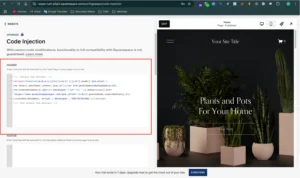
Step 1: Add GTM to Your Squarespace Website
Go to your Squarespace Dashboard
Navigate to:
Website > Pages > Custom Code > Code Injection
Paste your GTM container code inside the Header field
Click Save
Figure 2: GTM Installation in Squarespace
Step 2: Add Purchase Data Layer to the Order Status Page
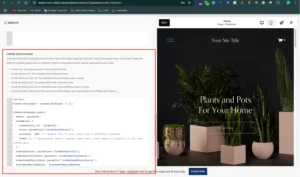
We’ll push the purchase event into the data layer so GTM can capture it.
Still under: Dashboard > Website > Pages > Custom Code > Code Injection
Scroll to the Order Status Page section
Add the following script:
Figure 3: Squarespace Order Status Data Layer Setup
Step 3: Create a Trigger for Purchase Event in GTM
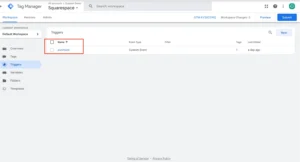
Go to GTM → Triggers > New
Name it: Purchase
Trigger Type: Custom Event
Event Name: purchase
Fire on: All Custom Events
Figure 4: GTM Purchase Trigger Setup
Step 4: Create Data Layer Variables in GTM
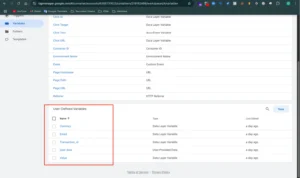
We’ll create 5 variables in total:
Figure 5: Data Layer Variables Setup
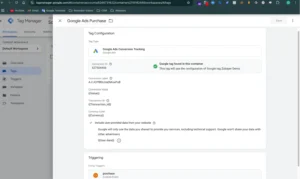
Step 5: Create Google Ads Purchase Conversion Tag
Go to GTM → Tags > New
Name it: Google Ads – Purchase Conversion
Tag Type: Google Ads Conversion Tracking
Figure 6: Google Ads Purchase Tag Setup
Step 6: Preview & Test
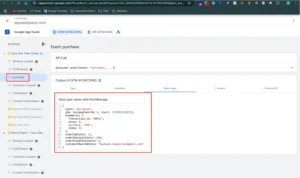
In GTM, click Preview
Visit your Squarespace store and place a test order
Figure 7: GTM Preview Purchase Event
➡️ Google Ads conversion tracking documentation
Step 7: Publish the GTM Container
Click Submit in GTM
Add a version name like Squarespace Purchase Setup
Click Publish
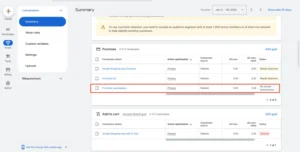
Step 8: Verify Conversion in Google Ads
Go to Google Ads > Tools & Settings > Conversions
Find your Purchase Conversion Action
Figure 8: Google Ads Conversion Status
Testing
Validate your squarespace purchase tracking ga4 setup using GTM Preview Mode and GA4 DebugView.
✔ Purchase event fires correctly
✔ Data layer captures transaction data
✔ GA4 receives purchase event
✔ No errors in GTM or GA4
Final Publish Step
Publish your GTM container and monitor GA4 reports.
✔ Confirm purchase data in GA4
✔ Verify events in DebugView
✔ Ensure consistent tracking
Comparison: Default vs GTM + GA4 Tracking (Squarespace)
| Feature | Default Tracking | GTM + GA4 Tracking |
| Data Accuracy | ❌ Limited (misses key purchase data) | ✅ High (data layer + event tracking) |
| Attribution | ❌ Weak / incomplete | ✅ Strong and reliable attribution |
| Flexibility | ❌ Low (limited customization) | ✅ High (fully customizable tracking) |
| Tracking Control | ❌ Restricted | ✅ Full control over events and data |
| Event Tracking | ❌ Basic tracking only | ✅ Advanced event-based tracking |
| Optimization Signals | ❌ Limited data for optimization | ✅ Strong signals for better performance |
| Scalability | ❌ Not scalable for advanced needs | ✅ Scalable for complex tracking setups |
| ROI Impact | ❌ Lower due to poor data quality | ✅ Higher due to accurate tracking |
Tracking Overview
This setup uses a structured squarespace ecommerce data layer to capture purchase data such as transaction ID, value, and currency, and sends it to GA4 via Google Tag Manager (GTM). In addition, it ensures that every purchase event is accurately tracked and recorded in GA4.
As a result, businesses gain reliable tracking data, better attribution insights, and stronger optimization signals. This leads to improved campaign performance, smarter decision-making, and higher overall ROI.
Real Use Case
A Squarespace store implemented this system:
• 35% increase in tracked purchases
• Improved attribution accuracy
• Better campaign optimization
• Higher ROI
➡️ For similar setups, check Unbounce Form Conversion Tracking for Google Ads (Enhanced Conversions) via GTM
Common Mistakes
- Missing data layer setup
- Incorrect GTM trigger
- Not testing properly
- Skipping GA4 verification
As a result, tracking becomes inaccurate and unreliable.
Pro Tips
- Always validate your squarespace ecommerce data layer to ensure accurate data capture
- Test every purchase event in GTM Preview before publishing
- Monitor GA4 DebugView to confirm events are received correctly
- Regularly check GA4 reports and conversion data for consistency
Frequently Asked Questions
How to track Squarespace purchases in GA4?
Use Google Tag Manager to push a purchase event into the Data Layer on Squarespace’s Order Status page. Add the Data Layer script in Squarespace’s Code Injection section under Order Status Page. In GTM create a Custom Event trigger for the purchase event and a GA4 Event tag that sends transaction ID, revenue and currency to GA4. Test in GTM Preview Mode and GA4 DebugView before publishing.
Why is Squarespace tracking not working?
The most common cause is the Data Layer script being placed in the global header instead of the Order Status Page Code Injection section. This makes the purchase event fire on every page instead of only on order confirmations. Other causes include incorrect GTM trigger configuration, missing Data Layer variables or the GTM container not being published after changes are made.
What is GA4 purchase event?
The GA4 purchase event is a standard ecommerce event that records completed transactions in Google Analytics 4. It captures transaction ID for deduplication, purchase value and currency for revenue reporting, and optionally item-level data for product performance analysis. GA4 uses this event to populate ecommerce reports and provide attribution data for campaign optimization.
How to verify Squarespace purchase tracking in GA4?
Open GTM Preview Mode and complete a test purchase on your Squarespace store. Confirm the purchase event fires in the Data Layer with the correct transaction ID, value and currency. Simultaneously open GA4 DebugView and verify the purchase event appears with matching data. Then check GA4 Reports under Monetization, then
E-commerce Purchases to confirm revenue data is being recorded after 24 to 48 hours.
Do I need GTM for Squarespace ecommerce tracking?
Yes, GTM is strongly recommended for Squarespace ecommerce tracking. Without GTM, you cannot push custom purchase events into GA4 with transaction ID and revenue data. GTM also allows you to send the same purchase data to Google Ads, Meta Pixel and other platforms simultaneously without modifying your Squarespace theme code multiple times for each platform.
How to fix Squarespace GA4 tracking issues?
Start by checking the Data Layer script location; it must be in the Order Status Page section of Squarespace Code Injection, not the global header. Then, verify your GTM purchase trigger is set to Custom Event with event name purchase. Check that all Data Layer variables are mapped correctly in GTM. Test in Preview Mode with a real test purchase and confirm all values populate before publishing your container.
Conclusion
Implementing squarespace purchase tracking ga4 ensures accurate data, better attribution, and improved campaign performance. As a result, businesses can make smarter decisions and scale effectively.
➡️ Learn more: How to Enable Ecommerce Data Layer in Squarespace Store with GTM
Ready to fix your Squarespace purchase tracking and improve GA4 performance?
Get a complete GTM + GA4 setup for accurate data, better attribution, and higher ROI.
👉 WhatsApp: https://wa.me/8801735749155
👉 Book a Call: https://zcal.co/zubayerislam01/consultation
